 Ruby: 使用 GitHub Actions 進行部署
如何利用 GitHub Actions 部署您的 Ruby 程式碼
👋 歡迎來到 Stackhero 文檔!
Stackhero 提供一個即用型的 Ruby cloud 解決方案,帶來多種好處,包括:
- 只需一個簡單的
git push,即可在幾秒鐘內 部署您的應用程式。- 使用您自己的域名,並享受 HTTPS 證書的自動配置以增強安全性。
- 享受自動備份、一鍵更新,以及簡單、透明和可預測的定價,讓您安心無憂。
- 得益於專用的私人 VM,獲得最佳的性能和強大的安全性。
節省時間並簡化您的生活:只需 5 分鐘即可嘗試 Stackhero 的 Ruby cloud hosting 解決方案!
GitHub Actions 讓您可以輕鬆自動化工作,例如將 Ruby 程式碼部署到生產伺服器,無需手動操作。
在本指南中,您將學習如何安全且可靠地設定 GitHub Actions,自動將您的 Ruby 程式碼部署到 staging(預備)及 production(生產)環境。這種做法可確保部署流程一致,並降低出錯風險。
開始前,您需要在 GitHub repository 中使用兩個分支:staging 和 production。每當您將程式碼 push 到這些分支時,變更就會自動部署到對應的 Stackhero 實例。
設置 staging 實例並非強制,但強烈建議同時設置 staging 和 production 環境。這是業界公認的最佳實踐,有助於在問題進入生產環境前先行發現。
開始前,請確保您已擁有 GitHub 帳戶,以及一個包含 Ruby 程式碼的 repository。
建立 Ruby 服務
請前往 Stackhero 控制台,建立兩個 Ruby 服務,分別用於 staging 和 production。為了方便辨識,建議將這兩個服務分別命名為「Production」及「Staging」。
還未有 Stackhero 帳戶? 您可以在幾分鐘內免費註冊,然後只需幾個步驟即可建立您的 Ruby cloud 服務。
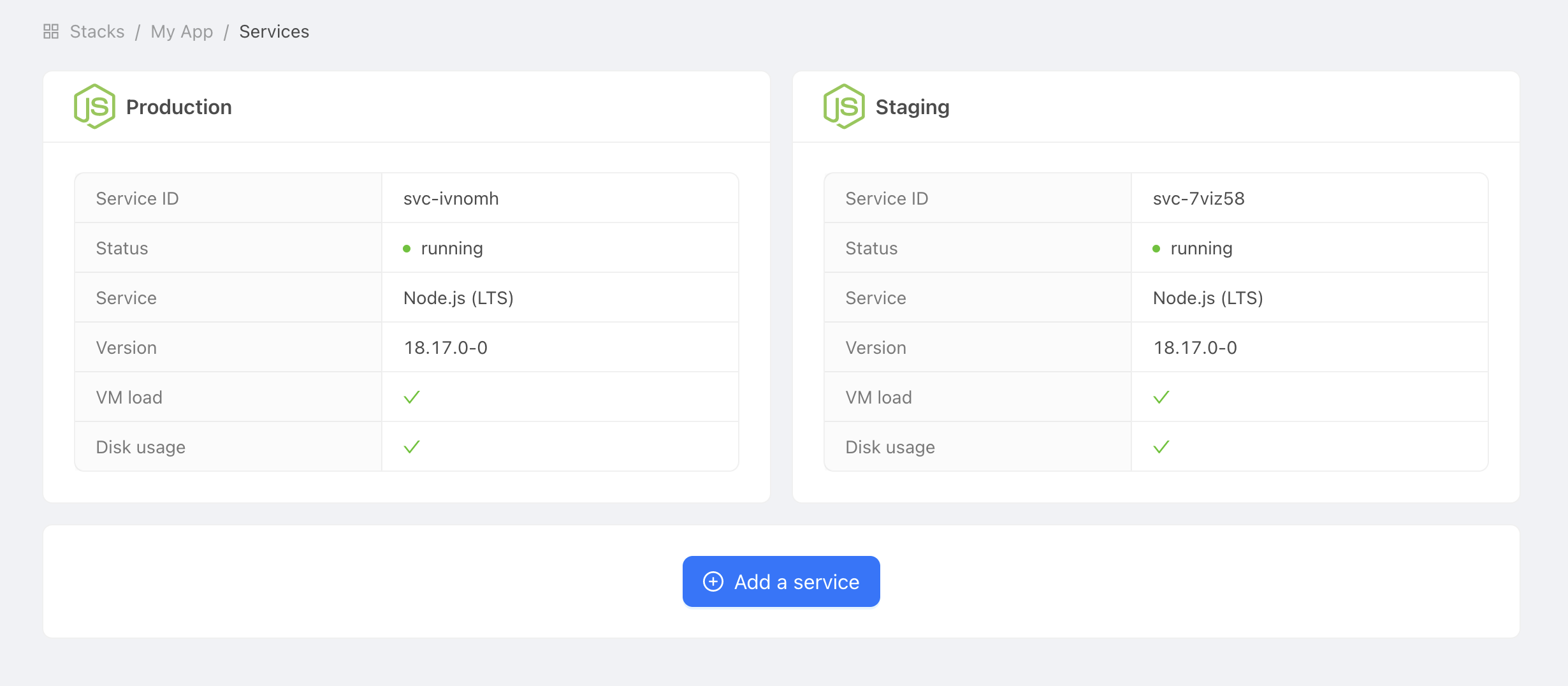 Production 及 Staging 服務範例
設定 SSH 金鑰
為了讓 GitHub Actions 能夠部署您的程式碼,您需要設定 SSH 金鑰。這可確保只有授權的操作能連接到您的 Stackhero 服務,保障部署安全。
您可以在本機產生一組新的 SSH 金鑰:
ssh-keygen -C "" -f /tmp/ssh_key -N ""
設定公鑰
接著,取得剛剛產生的公鑰內容:
cat /tmp/ssh_key.pub
在 Stackhero 控制台中,選擇您的「production」Ruby 服務,然後點擊「Configure」按鈕。
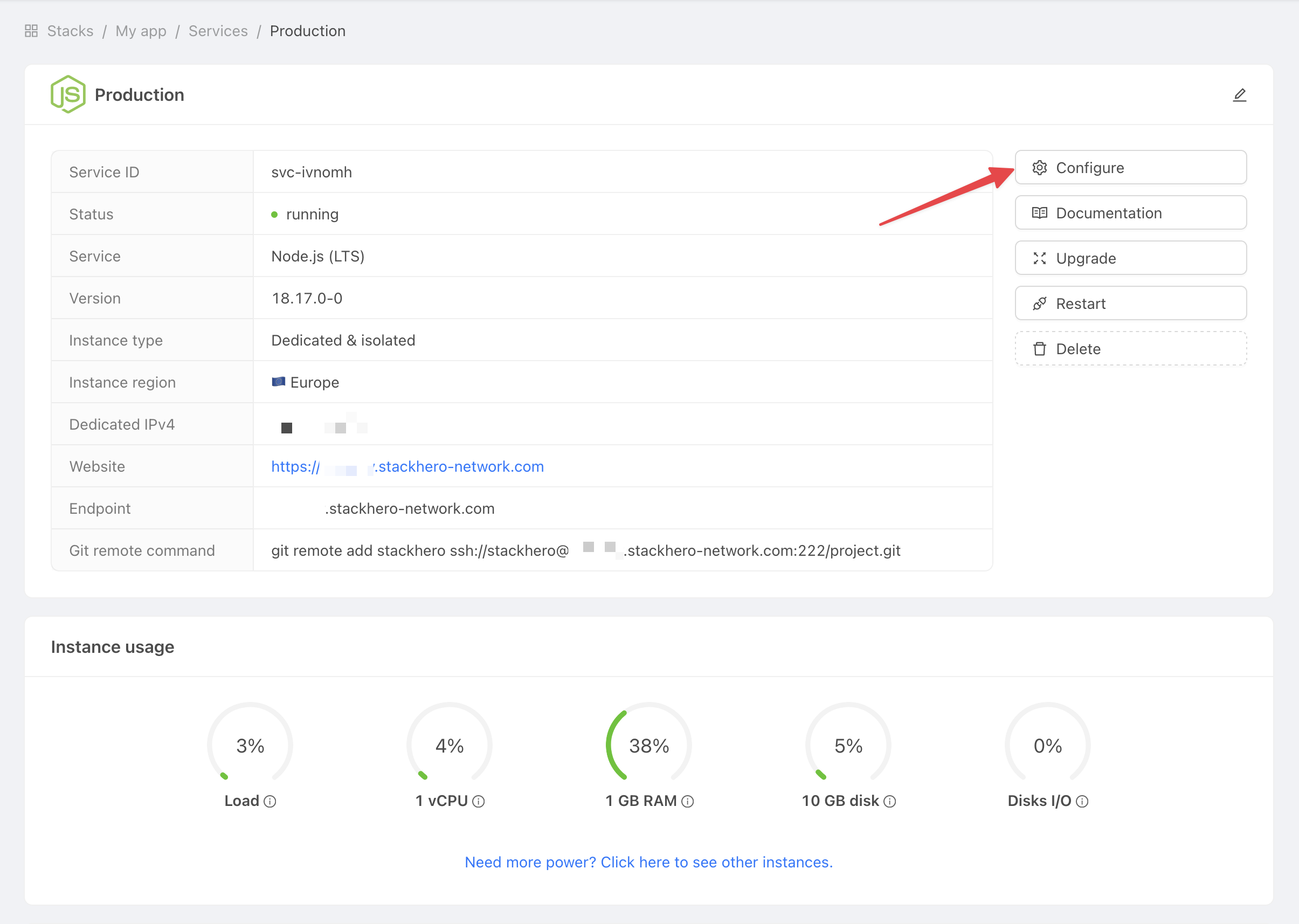 取得服務設定
然後:
- 在
SSH public keys下,點擊Add a public key。 - 在
Description欄輸入GitHub Action。 - 在
Key欄貼上您電腦上的公鑰內容。
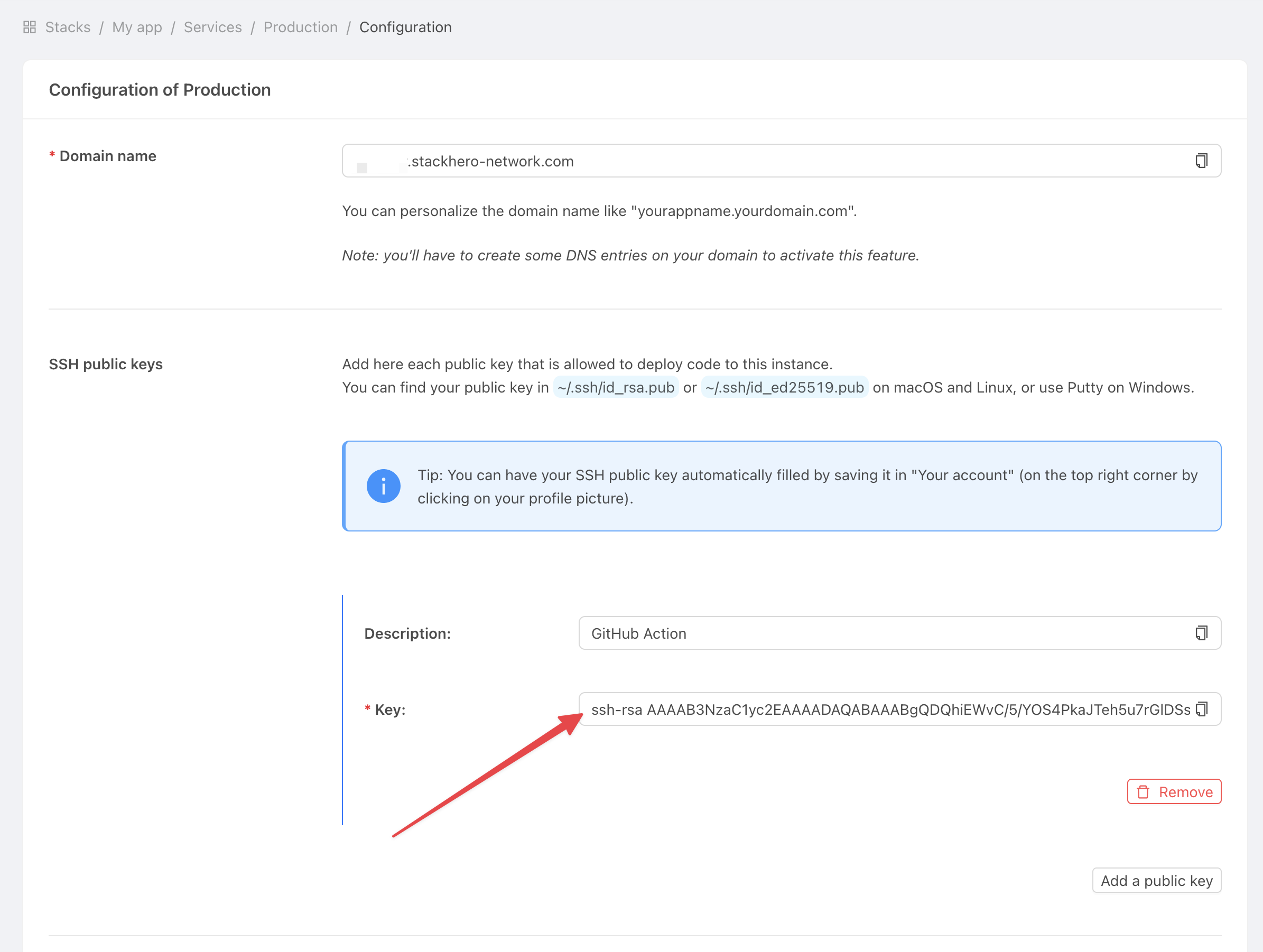 取得服務設定
設定私鑰
現在,請前往 GitHub 網站並打開您的專案。
進入 Settings > Environments,然後點擊 New environment。
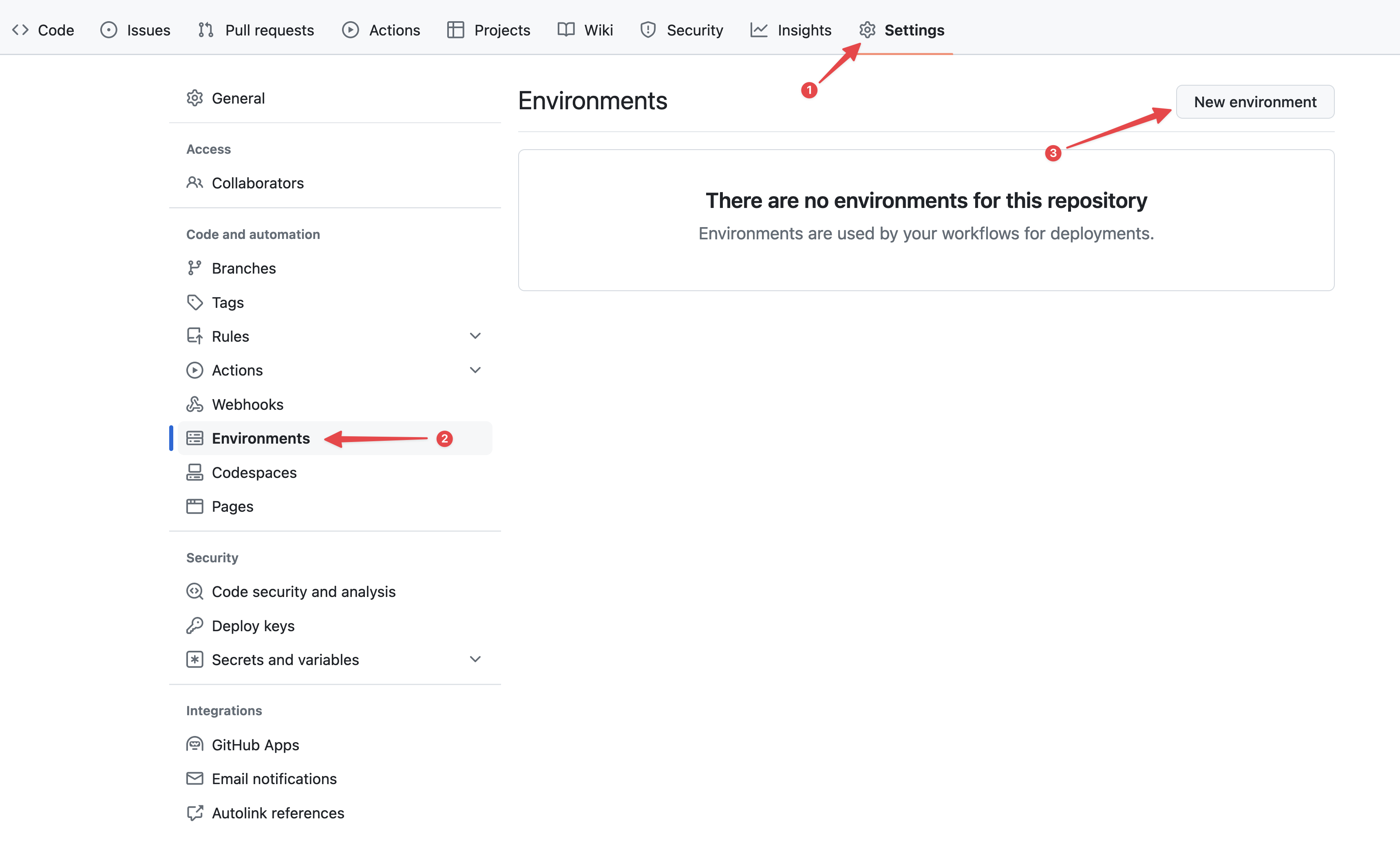 設定 GitHub 環境
將您的環境命名為「production」,然後儲存。
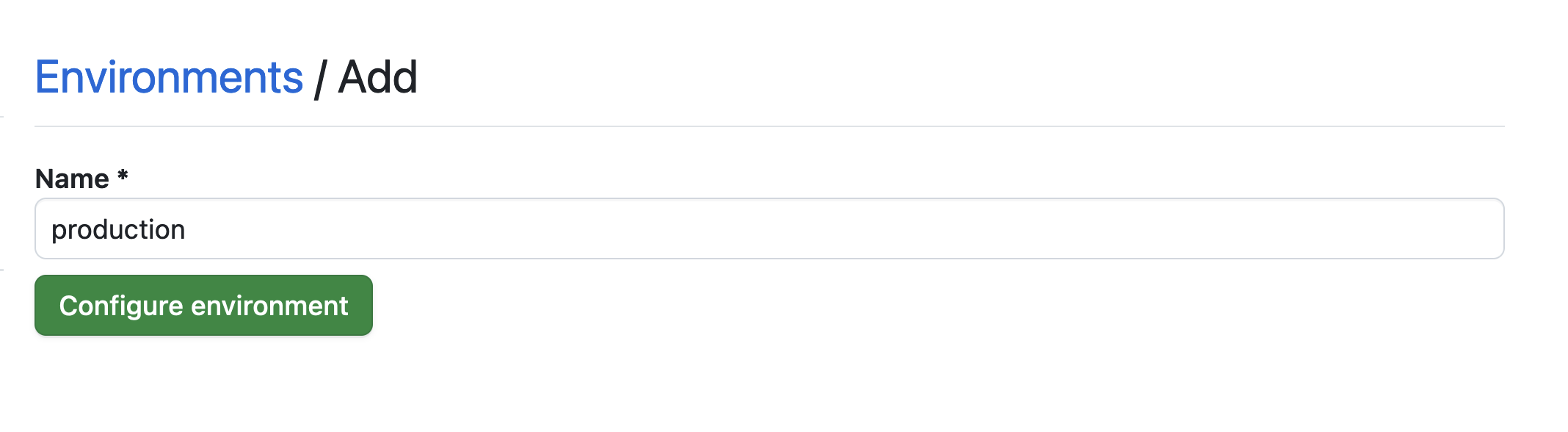 設定環境
設定環境
點擊 No restriction 按鈕,選擇 Selected branches and tags。
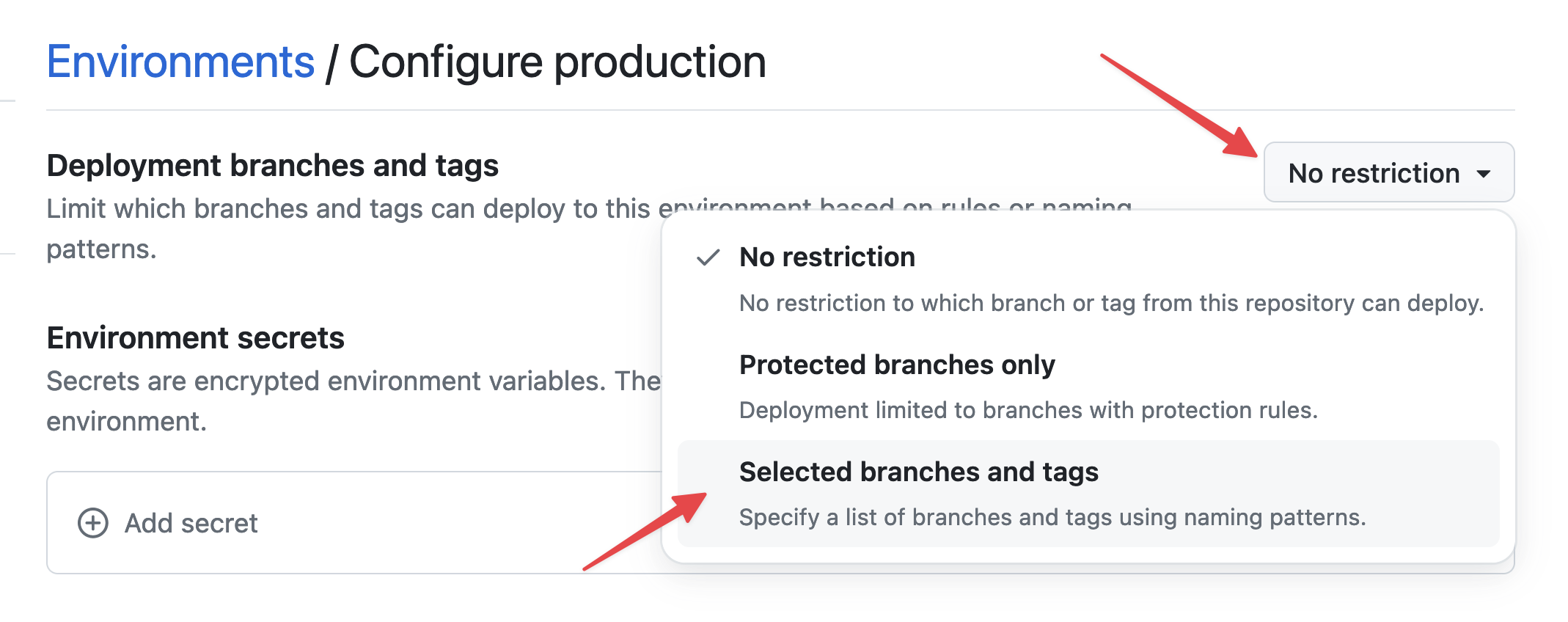 設定環境限制
點擊 Add deployment branch or tag rule,輸入「production」作為 pattern,然後新增規則。
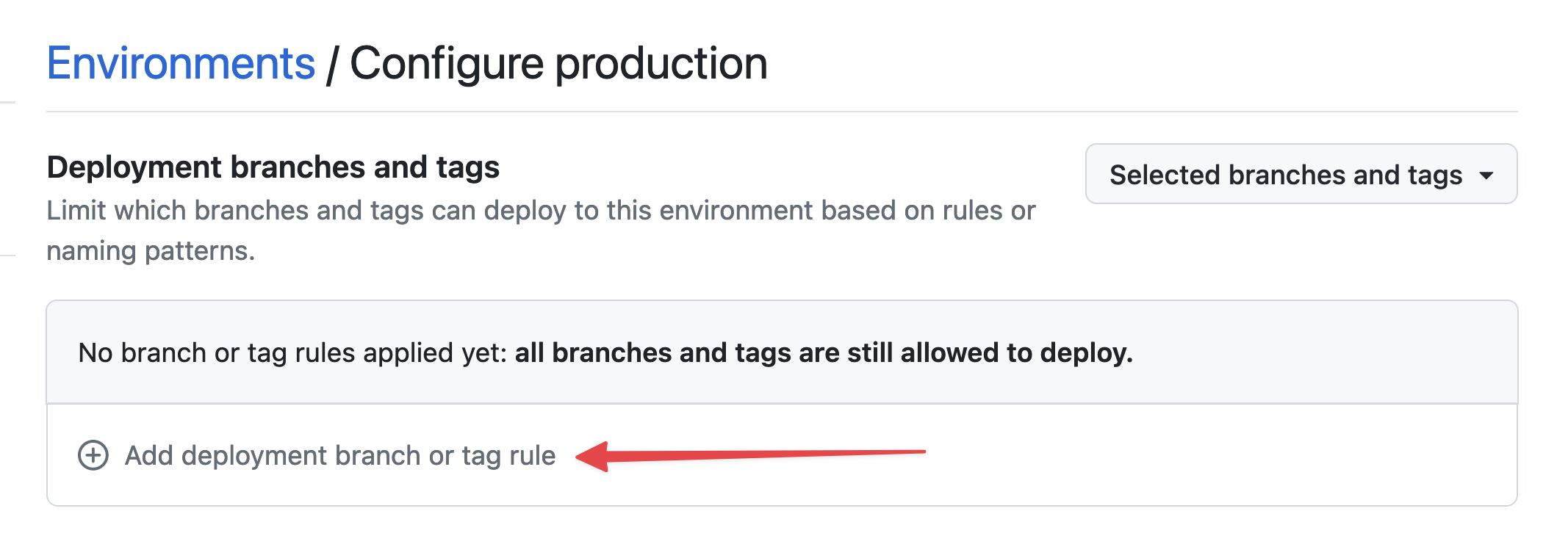 設定環境分支
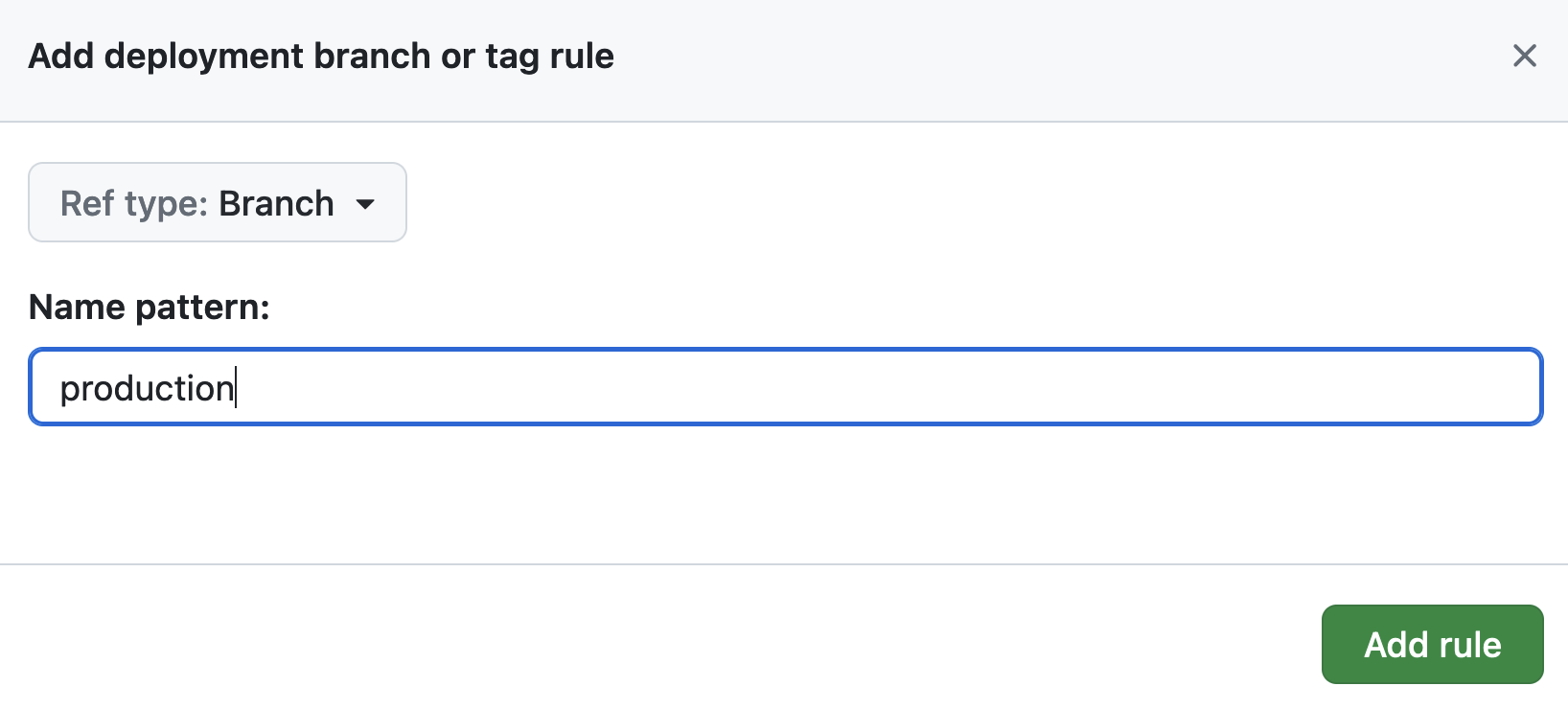 設定環境分支
為了安全儲存您的 SSH 私鑰,請到 Environment secrets,點擊 Add secret。
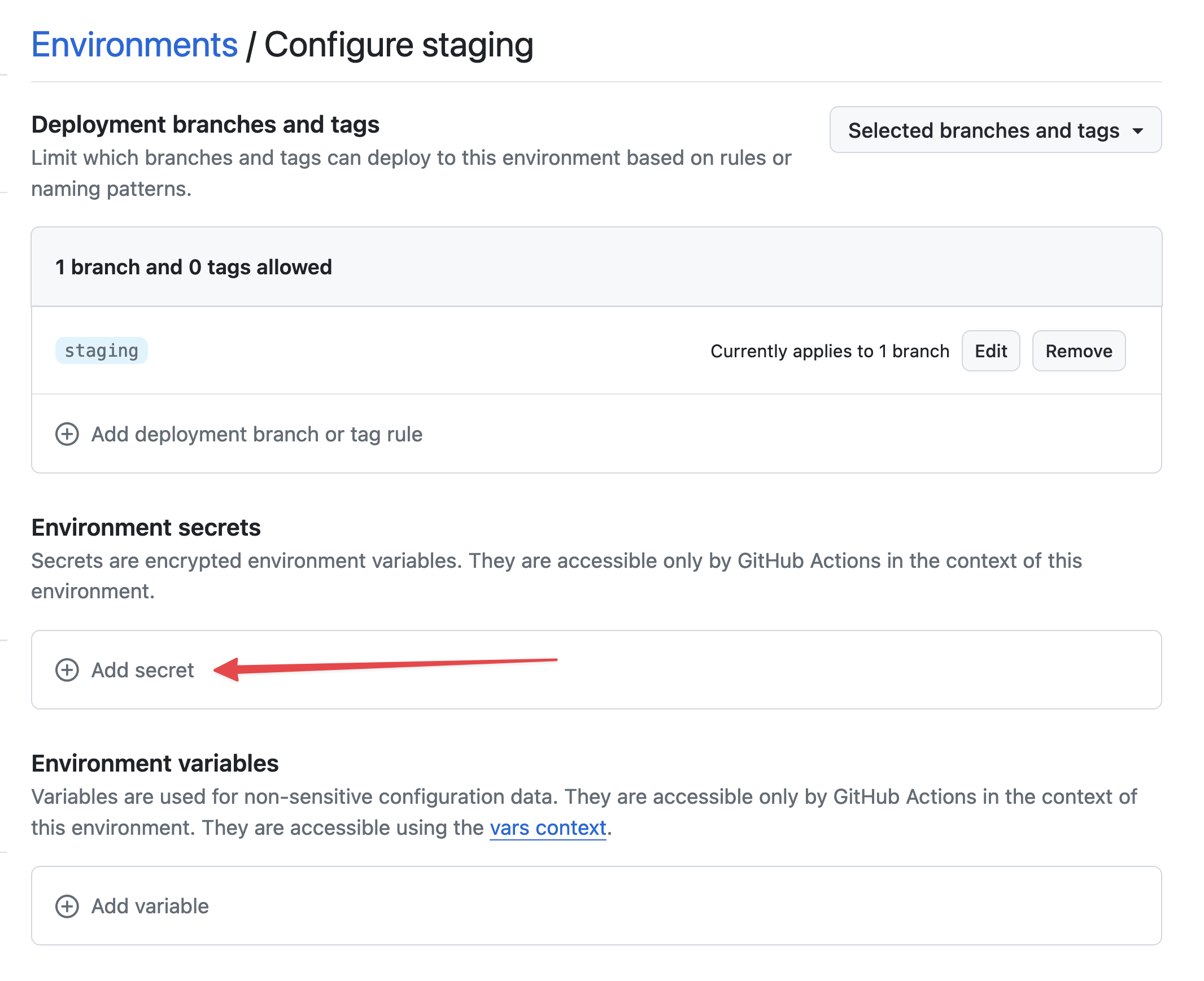 新增 secret
從您的電腦取得私鑰內容:
cat /tmp/ssh_key
在 Name 欄輸入 STACKHERO_SSH_PRIVATE_KEY,在 Value 欄貼上您的私鑰內容。
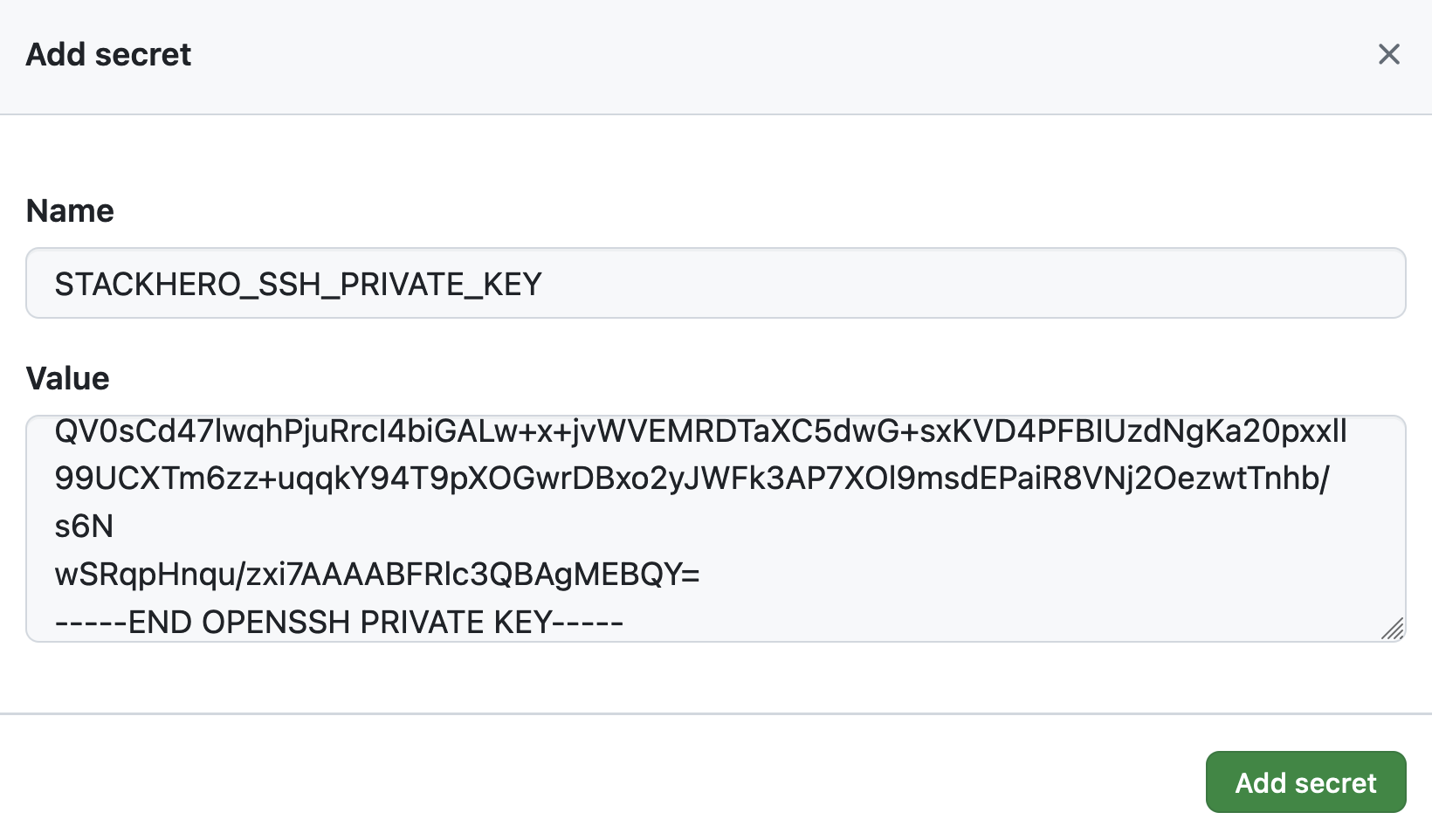 設定 SSH 私鑰 secret
接下來,將您的 Ruby 服務 endpoint 加入為環境變數。在 Environment variables 點擊 Add variable。
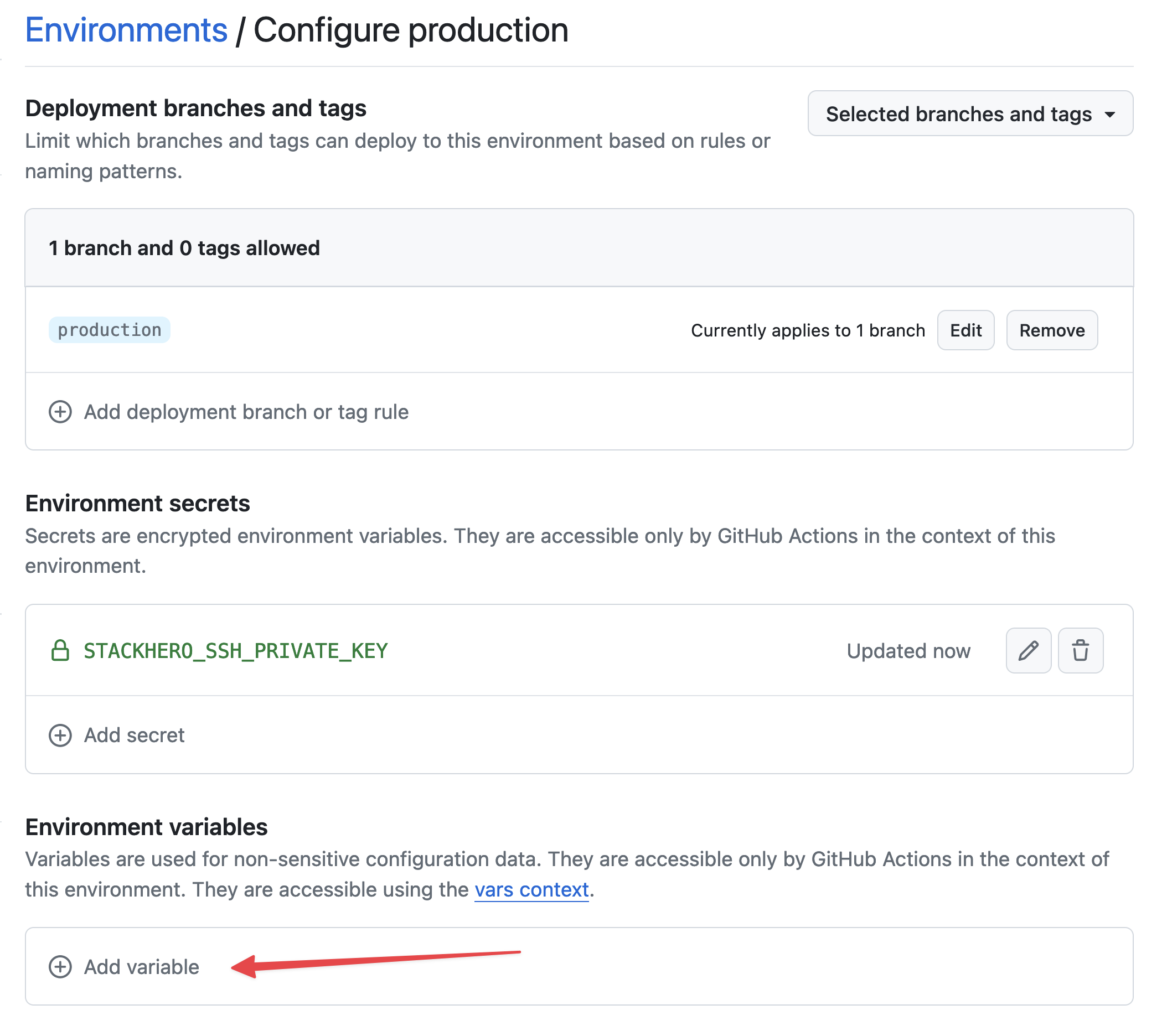 設定變數
設定變數
在 Name 欄輸入 STACKHERO_ENDPOINT,在 Value 欄貼上您在 Stackhero 控制台找到的 Ruby 服務 endpoint。
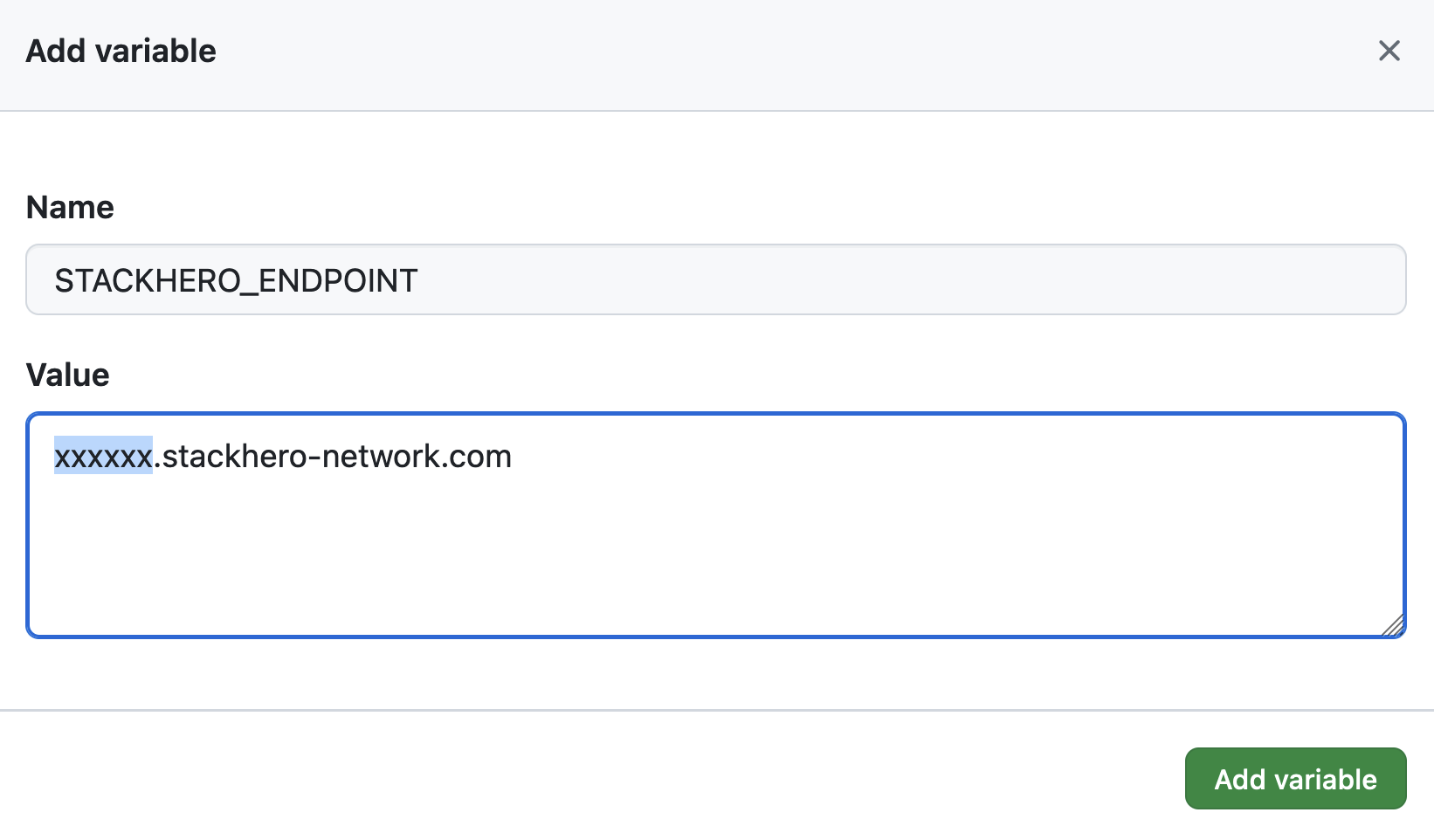 設定 endpoint 變數
如果您的服務已設置自訂網域名稱,請務必使用該自訂網域,而非 <XXXXXX>.stackhero-network.com。
刪除產生的金鑰
當您已在 Stackhero 及 GitHub 設定好金鑰後,建議將本機的金鑰檔案刪除以確保安全。
rm /tmp/ssh_key /tmp/ssh_key.pub
設定 GitHub Actions workflow
在您的本機 Git repository 中,建立一個名為 .github/workflows 的資料夾。然後在該資料夾內建立名為 deploy-to-stackhero.yml 的檔案。
# File: .github/workflows/deploy-to-stackhero.yml

name: Deploy to Stackhero
run-name: Deploy branch "${{ github.ref_name }}" to Stackhero

on:
  push:
    # List of branches that will trigger the deploy action following a git push.
    # Do not forget to create an environment corresponding to the branch name in GitHub (in "Settings"/"Environments").
    # Then add the corresponding secret "STACKHERO_SSH_PRIVATE_KEY" and variable "STACKHERO_ENDPOINT" in this environment.
    branches: [ "production", "staging" ]

jobs:
  Deploy:
    environment: ${{ github.ref_name }}
    runs-on: ubuntu-latest
    steps:
    - uses: stackhero-io/github-actions-deploy-to-stackhero@v1
      with:
        # The secret "STACKHERO_SSH_PRIVATE_KEY" and the variable "STACKHERO_ENDPOINT" should be defined in the corresponding branch environment on GitHub under "Settings"/"Environments".
        ssh_private_key: ${{ secrets.STACKHERO_SSH_PRIVATE_KEY }}
        endpoint: ${{ vars.STACKHERO_ENDPOINT }}
建立 workflow 檔案後,您可以提交變更。
git add -A .
git commit -m "Add GitHub Actions to deploy to Stackhero"
接著,建立 production 分支。
git checkout -b production
最後,將變更 push 到 GitHub。
git push --set-upstream origin production
這個 git push 會將您的程式碼上傳到 GitHub 的 production 分支。GitHub Actions 會自動啟動並將您的程式碼部署到 Stackhero 實例。
如要查看 workflow 執行情況,請到您的 GitHub 專案頁面並點擊 Actions。
 GitHub Actions 已部署到 production
恭喜您,已成功利用 GitHub Actions 建立自動部署到 production 的流程。
建立 staging 環境
staging 環境的設置流程與 production 完全相同。只需重複上述步驟,將所有 production 替換為 staging。
當 staging 環境設置完成後,您可以建立 staging 分支。
git checkout -b staging
將 staging 分支 push 到 GitHub。
git push --set-upstream origin staging
GitHub Actions 現在會自動將 staging 分支部署到指定的 Stackhero Ruby 實例。
進階建議
為了進一步保障部署安全,建議您保護 production 及 staging 分支。這代表禁止直接 push,所有變更必須透過 pull request。具備適當權限的團隊成員可審核並批准對 staging 的 pull request,待一切確認無誤後,再以相同方式合併到 production。
遵循這個 workflow,您可以提升安全性(只有授權用戶能部署到 staging 及 production),同時提升可靠性(所有新功能都會先在 staging 測試,才進入 production)。這有助於確保部署流程順暢,並維持生產環境的穩定。