 Docker: HTTPS 路由
如何在 Docker 容器中管理 HTTP 路由和 TLS 加密(HTTPS)
👋 欢迎来到 Stackhero 文档!
Stackhero 提供现成的 Docker 云 CaaS (Containers as a Service) 解决方案,具有众多优势,包括:
- 只需一个
docker-compose up,即可轻松将您的容器部署到生产环境。- 使用 HTTPS 保护的可定制域名(例如,https://api.your-company.com,https://www.your-company.com,https://backoffice.your-company.com)。
- 由专用私有 VM提供的最佳性能和强大安全性。
- 只需点击即可轻松更新。
节省时间并简化您的生活:只需 5 分钟即可尝试 Stackhero 的 Docker CaaS 云托管 解决方案,并将您的容器部署到生产环境!
每个 Stackhero for Docker 实例都包含一个专用的、预配置的 Traefik 服务器,该服务器管理 HTTP 流量并使用 TLS 证书自动加密。这种简化的设置使路由变得简单高效。例如:
- 将来自
https://www.my-company.com(带或不带 www 前缀)的流量发送到您的frontend容器。 - 将
https://www.my-company.com/documentations路由到您的documentations容器。 - 将
https://api.my-project.io定向到您的api容器。
您可以管理无限数量的域名,并自动创建和更新 TLS 证书。最棒的是,您只需三行即可配置所有这些!
Traefik 基本配置
在以下所有配置示例中,您需要将
<XXXXXX>.stackhero-network.com替换为您的 Stackhero for Docker 实例域名。
以下是一个基本的 docker-compose.yml 文件示例:
services:
  test:
    image: nginx
    labels:
      - "traefik.enable=true" # 启用 Traefik 将流量路由到此容器
      - "traefik.http.routers.test.rule=Host(`<XXXXXX>.stackhero-network.com`)" # 定义主机
      - "traefik.http.routers.test.tls.certresolver=letsencrypt" # 使用 'letsencrypt' 作为 TLS 证书解析器
在此示例中,名为 test 的容器使用 Nginx 镜像运行。关键配置在 labels 部分提供。您只需将这些行复制到您的 docker-compose.yml 文件中,并将 <XXXXXX>.stackhero-network.com 替换为您的服务域名。
您可以使用以下命令部署容器:
docker context use <XXXXXX>.stackhero-network.com
docker-compose up
容器启动后,访问 https://<XXXXXX>.stackhero-network.com/ 查看 "Welcome to nginx!" 页面。
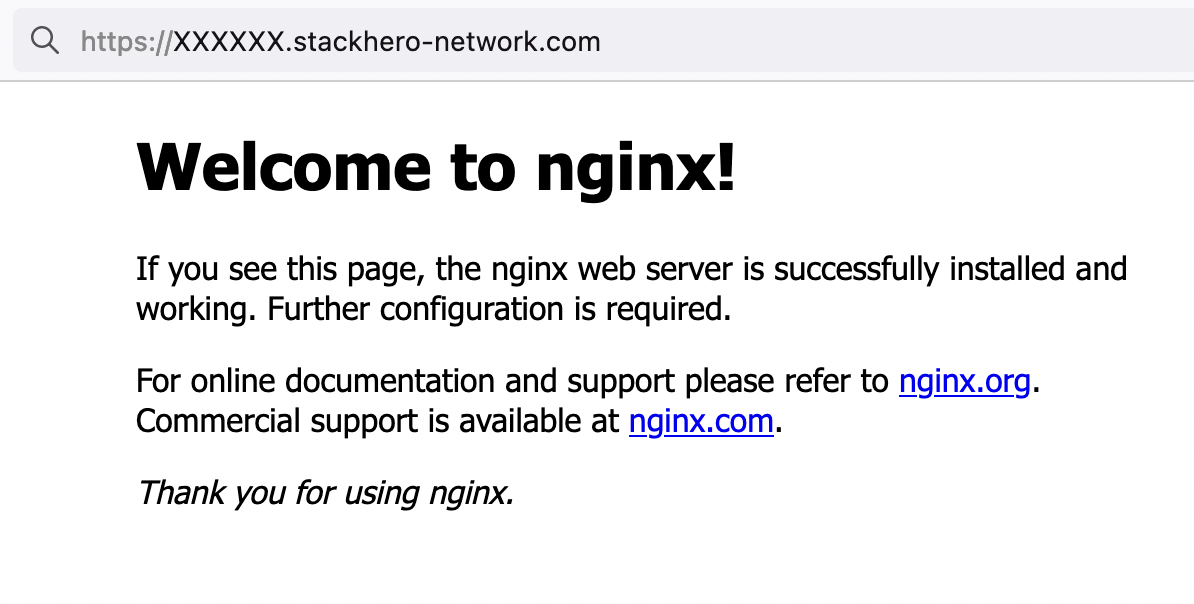 Nginx 欢迎页面
如果您没有看到 Nginx 欢迎页面,请检查 Traefik 仪表板以查找可能的错误!
通过此配置,发送到 <XXXXXX>.stackhero-network.com 的 HTTP 请求将被路由到您的 test 容器,Traefik 会自动创建和管理 HTTPS 的 TLS 证书。
使用 Traefik 处理自定义域名
在前面的示例中,我们使用了默认的 <XXXXXX>.stackhero-network.com 域名。实际上,您可能会使用自己的公司或项目域名,例如 www.my-company.com 或 api.my-project.io。以下部分解释如何配置自定义域名。
使用 Traefik 配置您的第一个域名
在此示例中,您将配置域名 api.my-project.io。将 my-project.io 替换为您拥有的域名,并将 api 替换为您想要的子域名。
首先,更新您的域名 DNS 设置,使 api.my-project.io 指向您的 <XXXXXX>.stackhero-network.com 域名。
- 登录到您的域名提供商并访问您的 DNS 配置。
- 创建一个名为
api的新条目(或您选择的其他子域名),将其类型设置为CNAME,并将其目标设置为<XXXXXX>.stackhero-network.com。
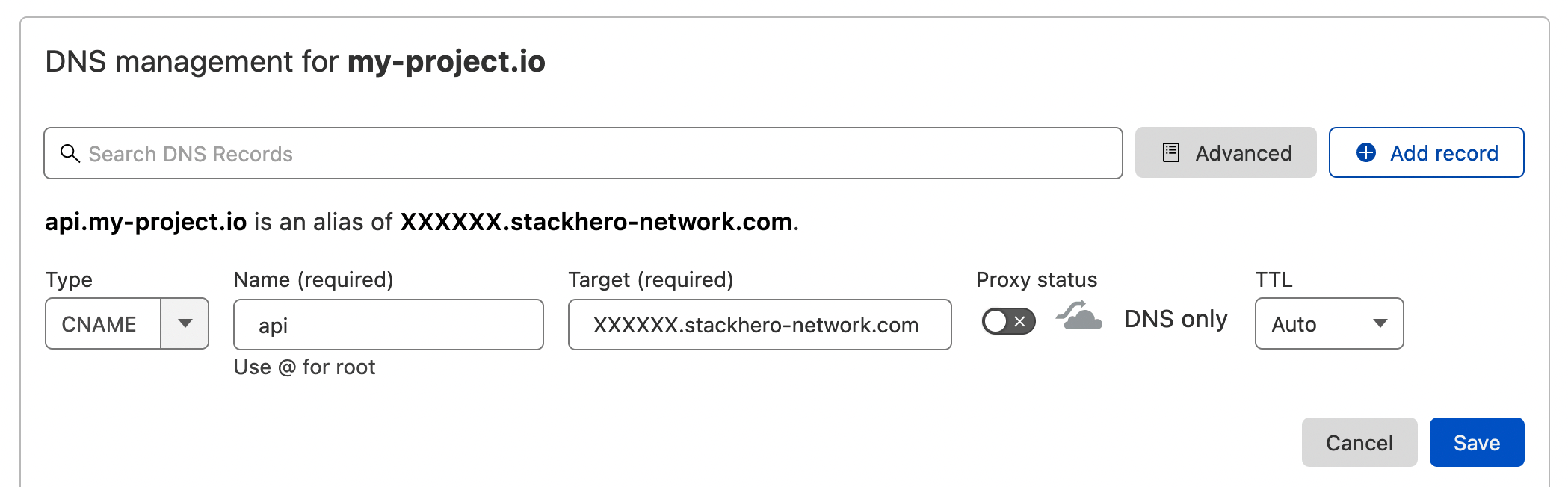 Cloudflare DNS 界面上的 DNS 配置示例
DNS 配置完成后,您可以通过运行以下命令进行验证:
host api.my-project.io
您应该看到类似的响应:
api.my-project.io is an alias for <XXXXXX>.stackhero-network.com
DNS 传播可能需要长达 24 小时,具体取决于您的提供商。 如果
host命令未返回预期的回复,请稍等片刻再试。
接下来,使用以下配置更新您的 docker-compose.yml 文件:
services:
  api:
    image: traefik/whoami
    hostname: api
    labels:
      - "traefik.enable=true"
      - "traefik.http.routers.api.rule=Host(`api.my-project.io`)" # 在此处添加您的域名
      - "traefik.http.services.api.loadbalancer.server.port=<PORT>" # 将 "<PORT>" 替换为您的 API 监听的端口
      - "traefik.http.routers.api.tls.certresolver=letsencrypt"
不要忘记在 Traefik 标签
Host中将api.my-project.io替换为您的实际域名。
使用以下命令部署您的容器:
docker-compose up -d
然后访问 https://api.my-project.io。您应该看到一个显示您的容器主机名 api 的文本页面。
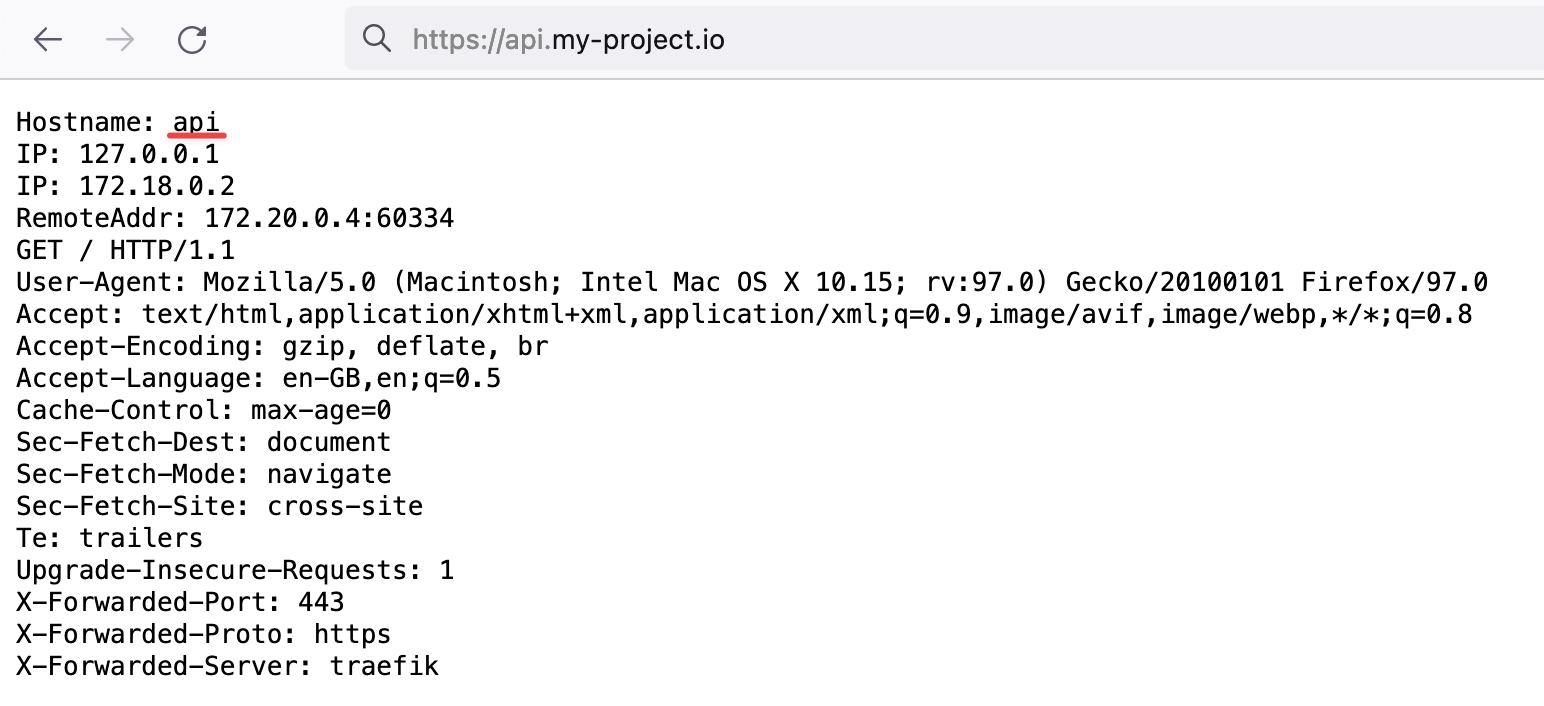 证明 Traefik 正在为我们的新域名处理 HTTP 流量并进行 TLS 加密
在首次创建容器时,TLS 证书可能需要几秒钟才能生成。 如果遇到 TLS 错误,请等待几秒钟并刷新页面,以便有时间生成证书。
恭喜,您现在已配置了您的第一个自定义域名!
如何使用 Traefik 将 "www" 子域名重定向到您的根域名
在定义网站 URL(如 my-company.com)时,最好也设置一个 "www" 子域名。这可以确保通过 www.my-company.com 连接的用户被重定向到您的主站点,并有助于避免重复内容问题。
在下面的示例中,my-company.com 和 www.my-company.com 都被处理。访问 www.my-company.com 的用户将被重定向到 my-company.com:
services:
  frontend:
    image: traefik/whoami
    hostname: frontend
    labels:
      - "traefik.enable=true"
      - "traefik.http.routers.frontend.rule=Host(`my-company.com`) || Host(`www.my-company.com`)" # 在此处添加两个域名
      - "traefik.http.services.frontend.loadbalancer.server.port=<PORT>" # 将 "<PORT>" 替换为您的前端监听的端口
      - "traefik.http.routers.frontend.tls.certresolver=letsencrypt"

      # 将 'www.my-company.com' 重定向到 'my-company.com':
      - 'traefik.http.routers.frontend.middlewares=redirect-www'
      - "traefik.http.middlewares.redirect-www.redirectregex.regex=^https://www.my-company.com/(.*)"
      - "traefik.http.middlewares.redirect-www.redirectregex.replacement=https://my-company.com/$${1}"
      - "traefik.http.middlewares.redirect-www.redirectregex.permanent=true"
使用 Traefik 将路径路由到特定容器
假设您有一个专用于文档站点的容器。您可能希望将 https://my-company.com/docs 路由到此容器,同时将其他请求(如 https://my-company.com/)发送到您的前端容器。下面的示例显示了如何实现这一点:
services:
  documentations:
    image: traefik/whoami
    hostname: documentations
    labels:
      - "traefik.enable=true"
      - "traefik.http.routers.documentations.rule=Host(`my-company.com`) && PathPrefix(`/docs`)" # 在此处定义路径前缀
      - "traefik.http.services.documentations.loadbalancer.server.port=<PORT>" # 将 "<PORT>" 替换为您的文档容器监听的端口
      - "traefik.http.routers.documentations.tls.certresolver=letsencrypt"

  frontend:
    image: traefik/whoami
    hostname: frontend
    labels:
      - "traefik.enable=true"
      - "traefik.http.routers.frontend.rule=Host(`my-company.com`) || Host(`www.my-company.com`)"
      - "traefik.http.services.frontend.loadbalancer.server.port=<PORT>" # 将 "<PORT>" 替换为您的前端监听的端口
      - "traefik.http.routers.frontend.tls.certresolver=letsencrypt"

      # 将 'www.my-company.com' 重定向到 'my-company.com':
      - 'traefik.http.routers.frontend.middlewares=redirect-www'
      - "traefik.http.middlewares.redirect-www.redirectregex.regex=^https://www.my-company.com/(.*)"
      - "traefik.http.middlewares.redirect-www.redirectregex.replacement=https://my-company.com/$${1}"
      - "traefik.http.middlewares.redirect-www.redirectregex.permanent=true"
现在,访问 https://my-company.com/docs(或任何子路径,如 https://my-company.com/docs/something)将显示来自 documentations 容器的内容。其他路径,例如 https://my-company.com/help,将由 frontend 容器提供服务。
在 Traefik 中定义自定义容器端口
默认情况下,Traefik 连接到容器的第一个暴露端口。在某些情况下,您可能需要指定特定端口。下面的示例演示如何定义自定义端口:
services:
  frontend:
    image: traefik/whoami
    hostname: frontend
    labels:
      - "traefik.enable=true"
      - "traefik.http.routers.frontend.rule=Host(`my-company.com`)"
      - "traefik.http.routers.frontend.tls.certresolver=letsencrypt"

      # 将 'https://my-company.com' 的流量路由到 'frontend' 容器的端口 80
      - "traefik.http.services.frontend.loadbalancer.server.port=80"
Traefik 和 Docker Compose 命名良好实践
在您的 docker-compose.yml 文件中定义容器时,某些字段对于更好的一致性和易于管理非常重要。考虑使用以下推荐配置:
services:
  <CONTAINER_NAME>:
    image: traefik/whoami
    hostname: <CONTAINER_NAME>
    container_name: <CONTAINER_NAME>
    restart: unless-stopped
    labels:
      - "traefik.enable=true"
      - "traefik.http.routers.<CONTAINER_NAME>.rule=Host(`my-company.com`)"
      - "traefik.http.routers.<CONTAINER_NAME>.tls.certresolver=letsencrypt"
只需将 <CONTAINER_NAME> 替换为您想要的容器名称,例如 frontend。
Let's Encrypt 错误 "域名包含无效字符"
在创建子域名时,Let's Encrypt 遵循 RFC 952 和 1123,这些标准仅允许字符集 [a-zA-Z0-9-] 中的字符。
虽然下划线 ('_') 在 DNS 记录名称中是允许的,但在主机名中不可接受。因此,Let's Encrypt 拒绝诸如 "my_subdomain.example.com" 的子域名,并显示错误 "域名包含无效字符"。
要解决此问题,只需从您的子域名中删除所有下划线。