 Graylog: Using with Python
How to send logs from Python to Graylog
👋 Welcome to the Stackhero documentation!
Stackhero offers a ready-to-use Graylog cloud solution that provides a host of benefits, including:
- Unlimited and dedicated SMTP email server included.
- Effortless updates with just a click.
- Customizable domain name secured with HTTPS (for example, https://logs.your-company.com).
- Optimal performance and robust security powered by a private and dedicated VM.
Save time and simplify your life: it only takes 5 minutes to try Stackhero's Graylog cloud hosting solution!
Sending logs from Python to Graylog is a straightforward process. In this guide, we will show you how to use the graypy and logging packages to forward logs from your Python application to your Graylog instance.
Setting up Graylog
Start by configuring a GELF TCP input on your Graylog server.
Go to your Graylog admin panel. Under "System" > "Inputs", create a new input of type "GELF TCP". Make sure to check the "global" box, enter a "title" for your input, and confirm that the port is set to 12201.
Do not enable any TLS option here. TLS encryption will be managed by the reverse proxy included with your instance.
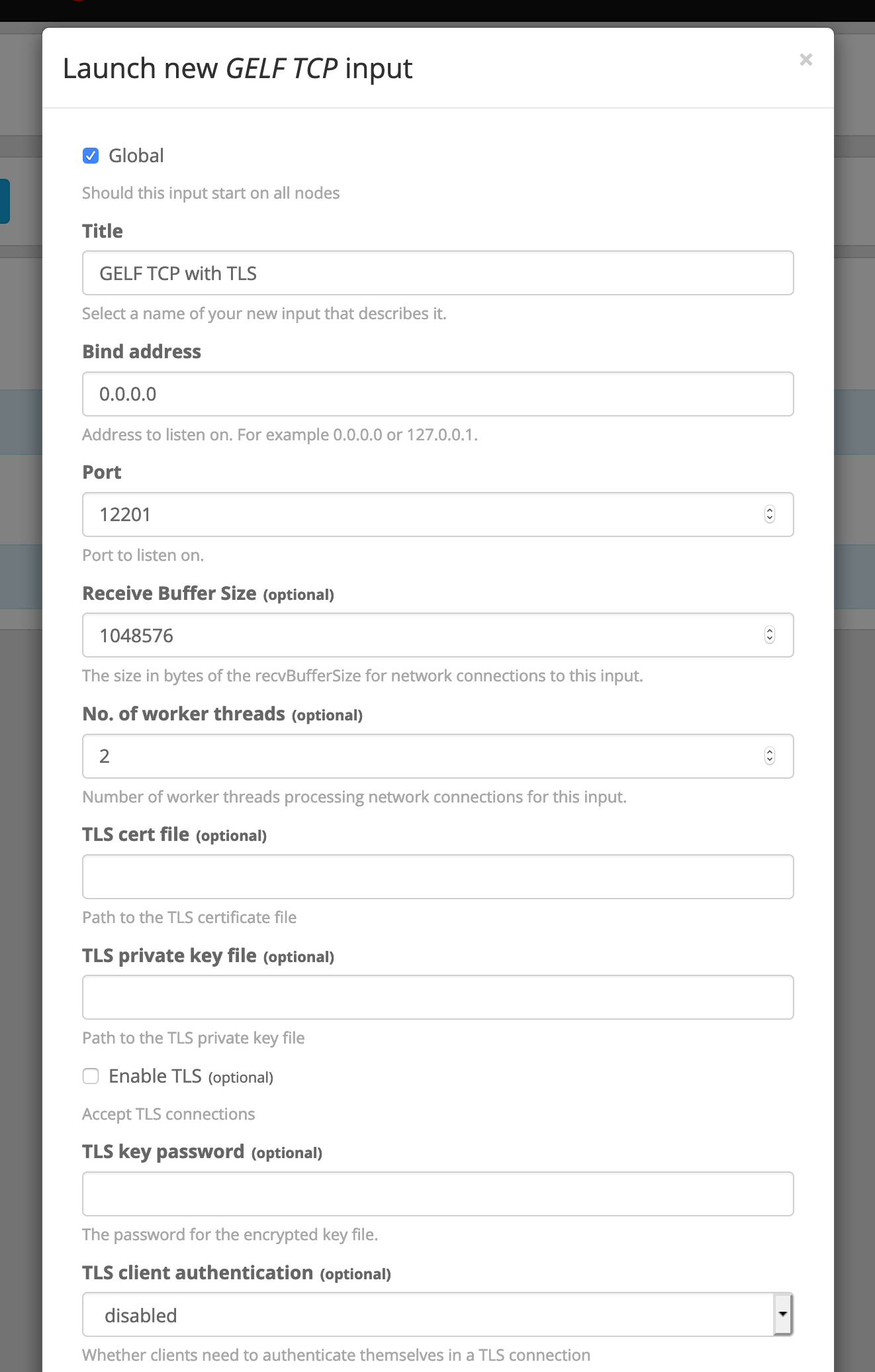 Input configuration
Configuring your service in Stackhero
In the Stackhero dashboard, select your Graylog service and click on "Configure".
Ensure that TCP port 12201 is properly configured and that "TLS encryption" is enabled for this port. Save your changes to apply the configuration.
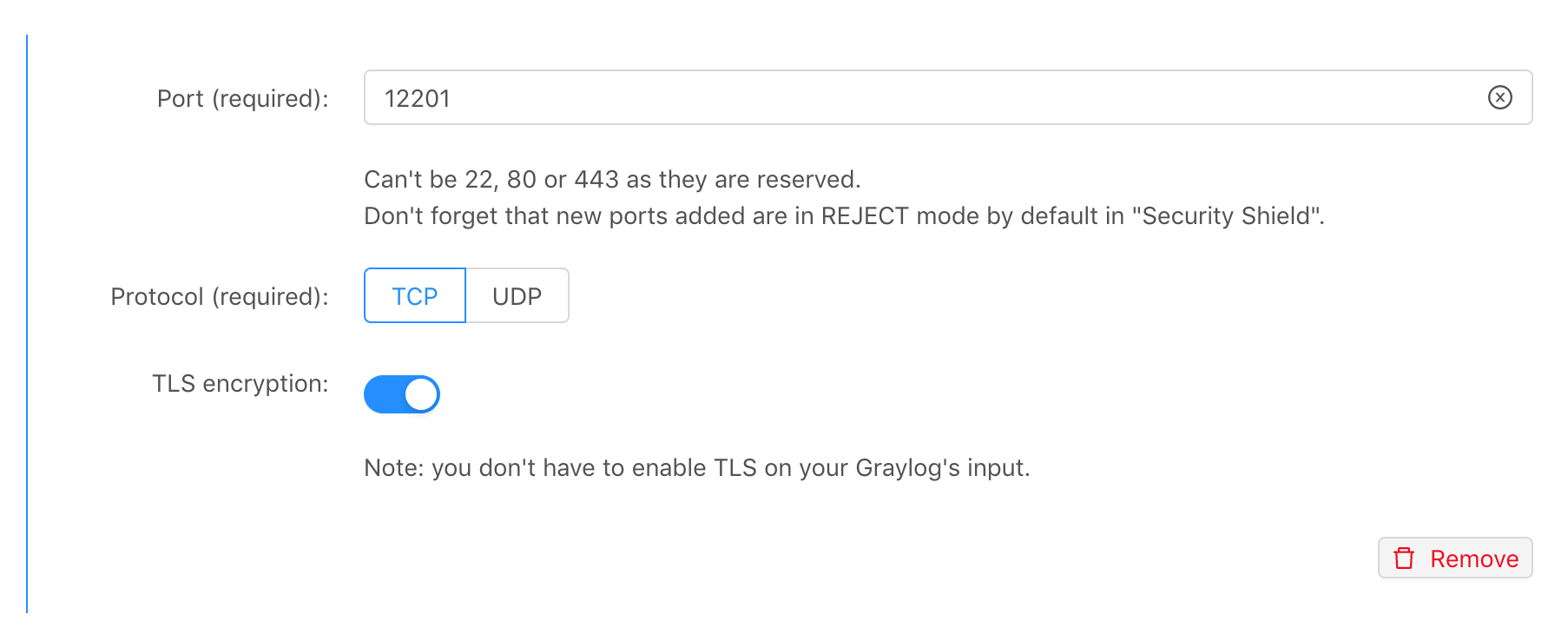 Input port configuration
Check in your service's "Firewall" that you have allowed at least your own IP to send data to TCP port 12201. For testing, it may be easier to allow all IPs (0.0.0.0/0), which is the default setting.
Example: Sending logs from Python
For this example, you can use the graypy library. To get started, simply install it with pip install graypy.
Next, create a file named graylog-example.py and replace <XXXXXX>.stackhero-network.com with your server's hostname. Here is a sample script you can try:
import logging
import graypy

my_logger = logging.getLogger('test_logger')
my_logger.setLevel(logging.DEBUG)

handler = graypy.GELFTLSHandler('<XXXXXX>.stackhero-network.com', 12201)
my_logger.addHandler(handler)

my_logger.debug('This is a test from a Python script!')
To view your logs, open the Graylog admin panel, go to the "Search" tab, click the play icon, and set it to update every second. You can run your script with:
python graylog-example.py
Once the script is running, your log message will be sent to Graylog and you should see it appear in the search results.
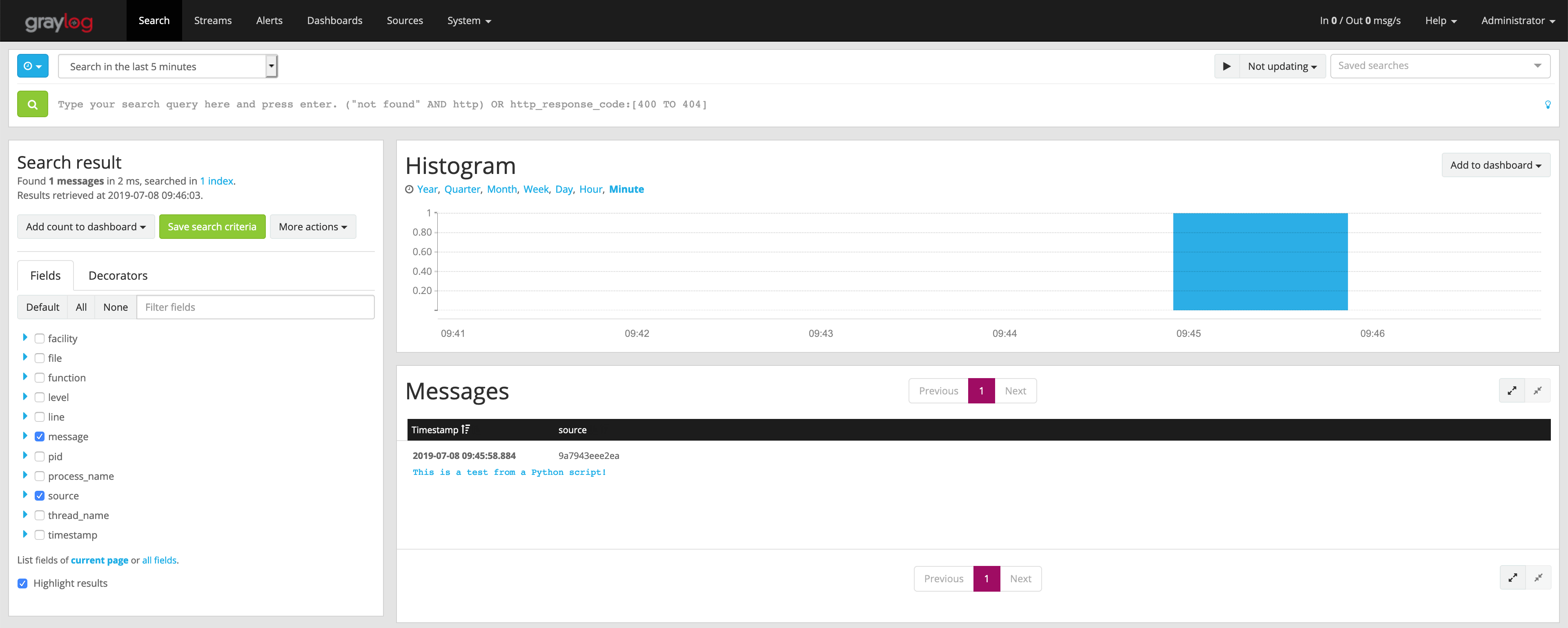 Your first log received on Graylog
By clicking on the message "This is a test from a Python script!", you will see useful details such as the script name and the exact line that generated the log.
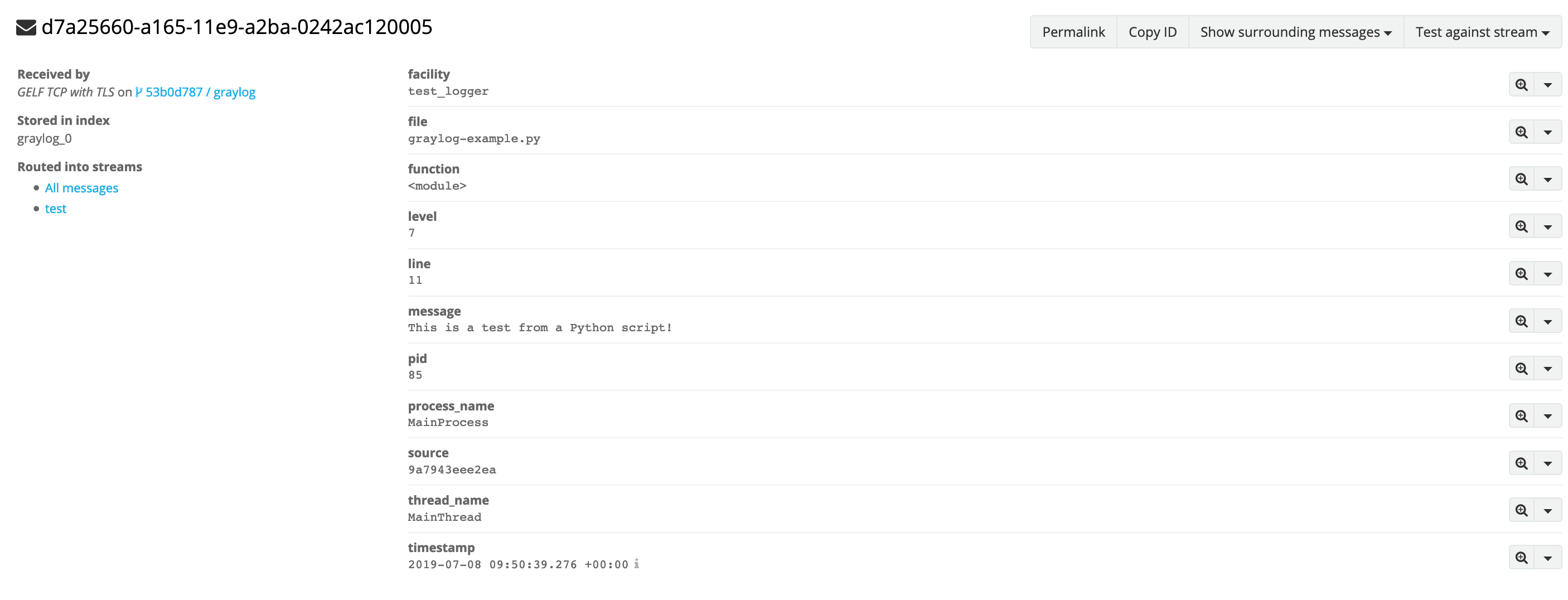 Detailed log
Sending error logs
Graylog is not just for standard log messages. You can also capture and forward errors to better monitor your application's behaviour. This makes it easier to track issues and receive notifications by email, Slack, or Mattermost.
Here is an example where we intentionally call a function that does not exist to generate an error. Remember to replace "<XXXXXX>.stackhero-network.com" with your actual instance hostname.
import logging
import graypy

my_logger = logging.getLogger('test_logger')
my_logger.setLevel(logging.DEBUG)

handler = graypy.GELFTLSHandler('<XXXXXX>.stackhero-network.com', 12201)
my_logger.addHandler(handler)

try:
    unknown_function()
except NameError:
    my_logger.debug('The "unknown_function" raised an error', exc_info=1)
You can run this script just like before. In your Graylog admin panel, you will see the error message "NameError: name 'unknown_function' is not defined" along with the full stack trace.
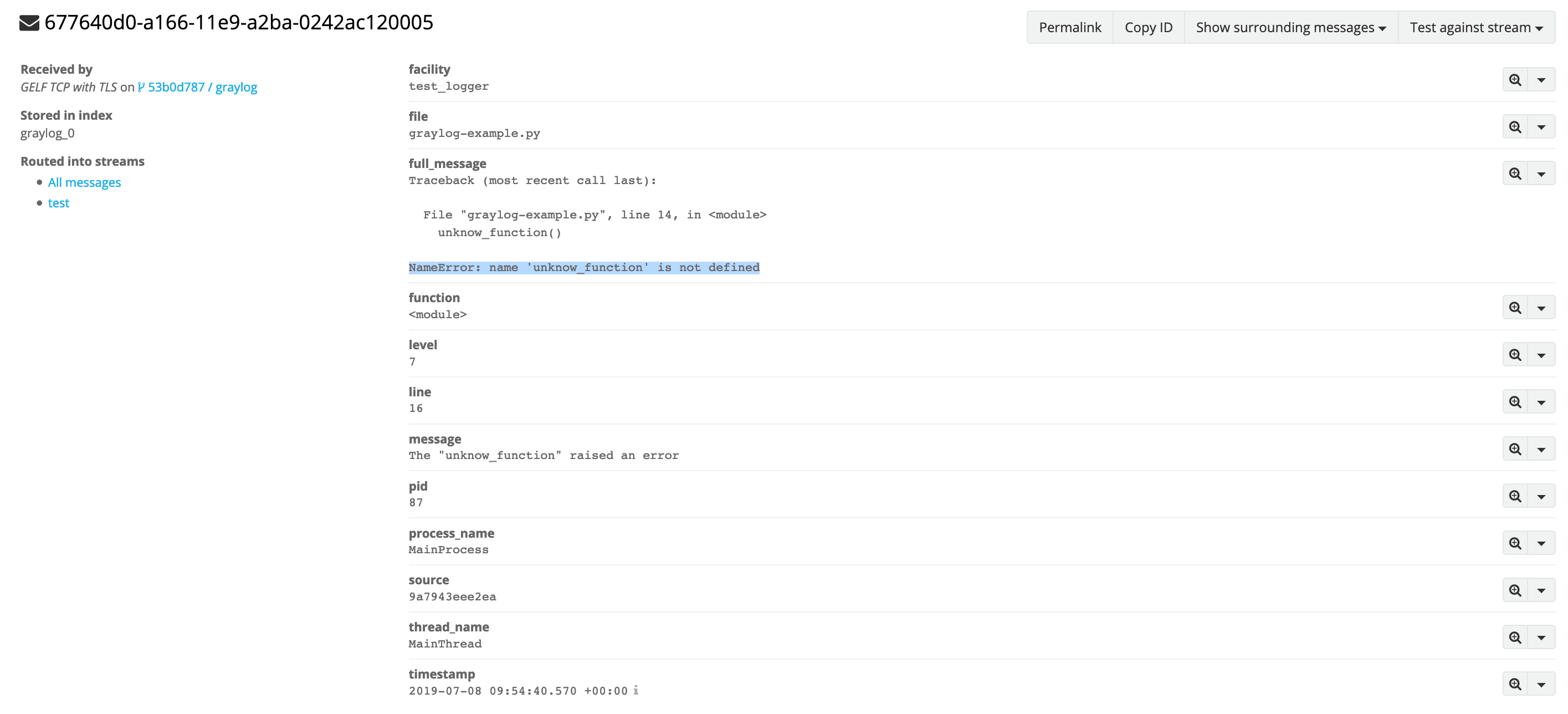 Error log example
Strengthening communication security
Although the previous examples use TLS encryption, they do not validate the certificate. This is fine for testing, but in a production environment, it is important to verify the certificate's validity.
You can enable certificate validation by adding the validate and ca_certs options as shown below:
handler = graypy.GELFTLSHandler('<XXXXXX>.stackhero-network.com', 12201, validate=True, ca_certs='/etc/ssl/certs/ca-certificates.crt')
Make sure the file /etc/ssl/certs/ca-certificates.crt exists on your system:
- On Ubuntu/Debian, you can install it with
sudo apt install ca-certificates. - On Alpine Linux, install it with
apk add ca-certificates. - On macOS, it is installed by default, but the file is named
/etc/ssl/cert.pem.
Troubleshooting
If your logs are not appearing in Graylog, here are a few things to check:
- Make sure Graylog has a GELF TCP input listening on port 12201, and that TLS is not enabled on this input.
- In the Stackhero dashboard, under "Configure", confirm that port 12201 is set up with TCP and TLS enabled under "Input ports".
- Check that the firewall rules in Stackhero show port "12201/tcp" as "ACCEPT", ideally at position #1 with the source set to 0.0.0.0/0 for testing.
- In the Graylog admin panel under "Search", make sure you are viewing logs from the last hour and set the view to update every second to see new messages as they arrive.