 Node-RED: Manage projects
How to use "Projects" in Node-RED
👋 Welcome to the Stackhero documentation!
Stackhero offers a ready-to-use Node-RED cloud solution that provides a host of benefits, including:
- MQTT server included (Mosquitto).
- Full access to Node-RED admin UI.
- Node-RED Dashboard included.
- Unlimited and dedicated SMTP email server included.
- Effortless updates with just a click.
- Customizable domain name secured with HTTPS (for example, https://node-red.your-company.com).
- Optimal performance and robust security powered by a private and dedicated VM.
Save time and simplify your life: it only takes 5 minutes to try Stackhero's Node-RED cloud hosting solution!
"Projects" in Node-RED is a powerful feature that integrates Git-based version control directly into your workflow. By leveraging this functionality, it becomes much easier to manage and synchronize your flows with external Git repositories, which is particularly useful for team collaboration and maintaining an organized development process.
Creating a public key
To get started, sign in to your Node-RED instance. Click the "hamburger" menu icon in the top-left corner, go to "Projects", and select "New".
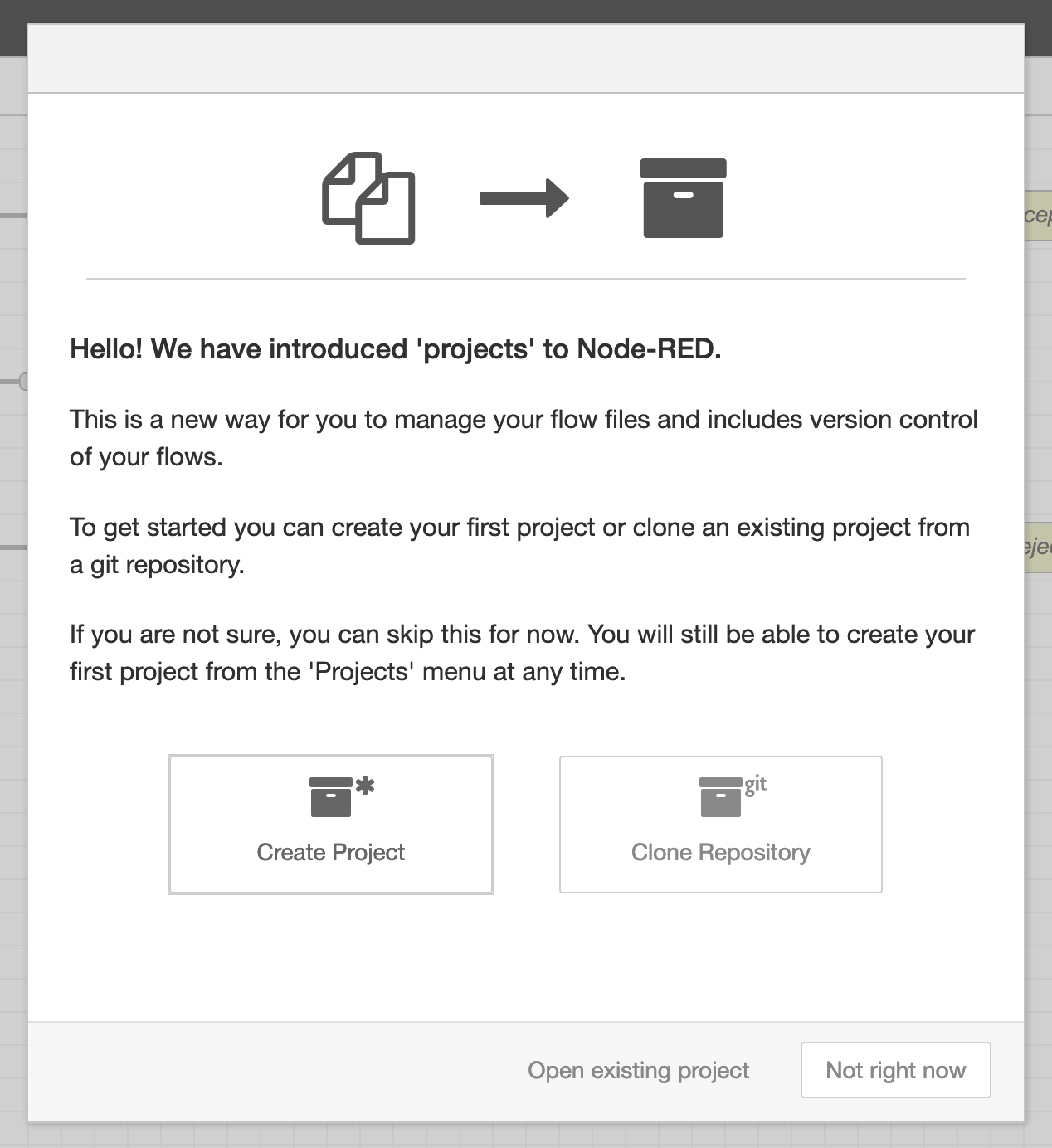 Welcome screen
Before creating or cloning a project, you need to generate a public key. If prompted, choose the Not right now option. Next, open the menu (the "hamburger" button in the top-right corner), go to Settings, and then to the Git config section.
In the "Committer Details" area, enter your Git username and email address. This information links your Git commits to your identity. For consistency, you may want to set the username as Node-RED and use an email such as nodered@<XXXXXX>.stackhero-network.com.
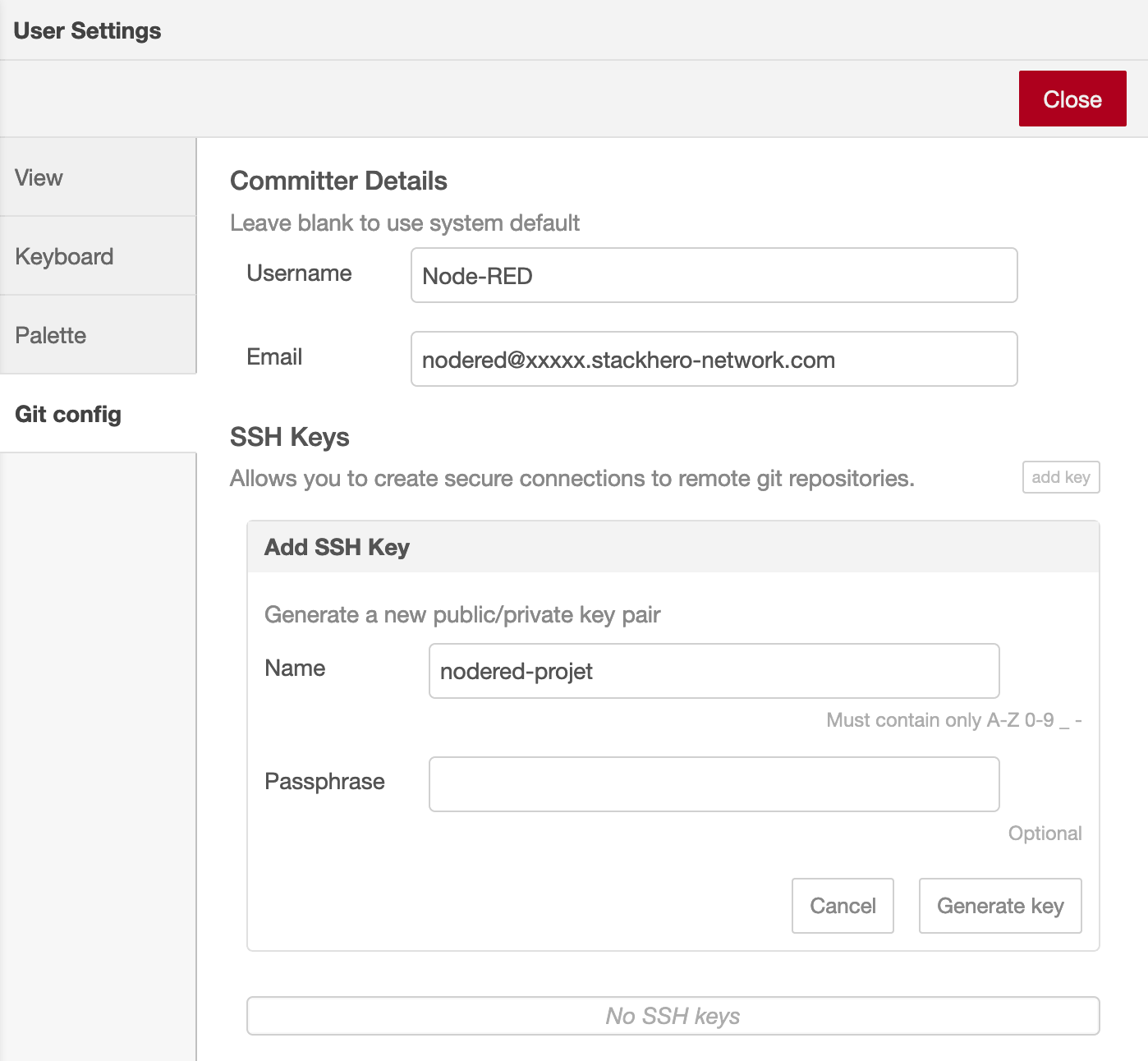 Git configuration panel
When you are ready, click the Add key button, give your key a descriptive name, and then click Generate key. You can then use the Copy public key to clipboard option to copy the key before closing the panel.
Configuring your remote repository
To connect Node-RED to a remote repository, follow these steps (the example here uses GitHub, but the process is similar for other platforms):
- Add your public key in your chosen platform's settings.
- Get the SSH URL for your Git repository.
You can either create a new repository or use an existing one. On GitHub, open your repository, go to Settings, then Deploy keys, and click Add deploy key. Paste in the public key you copied earlier, give it a clear name such as "Node-RED", check the Allow write access box, and click Add key.
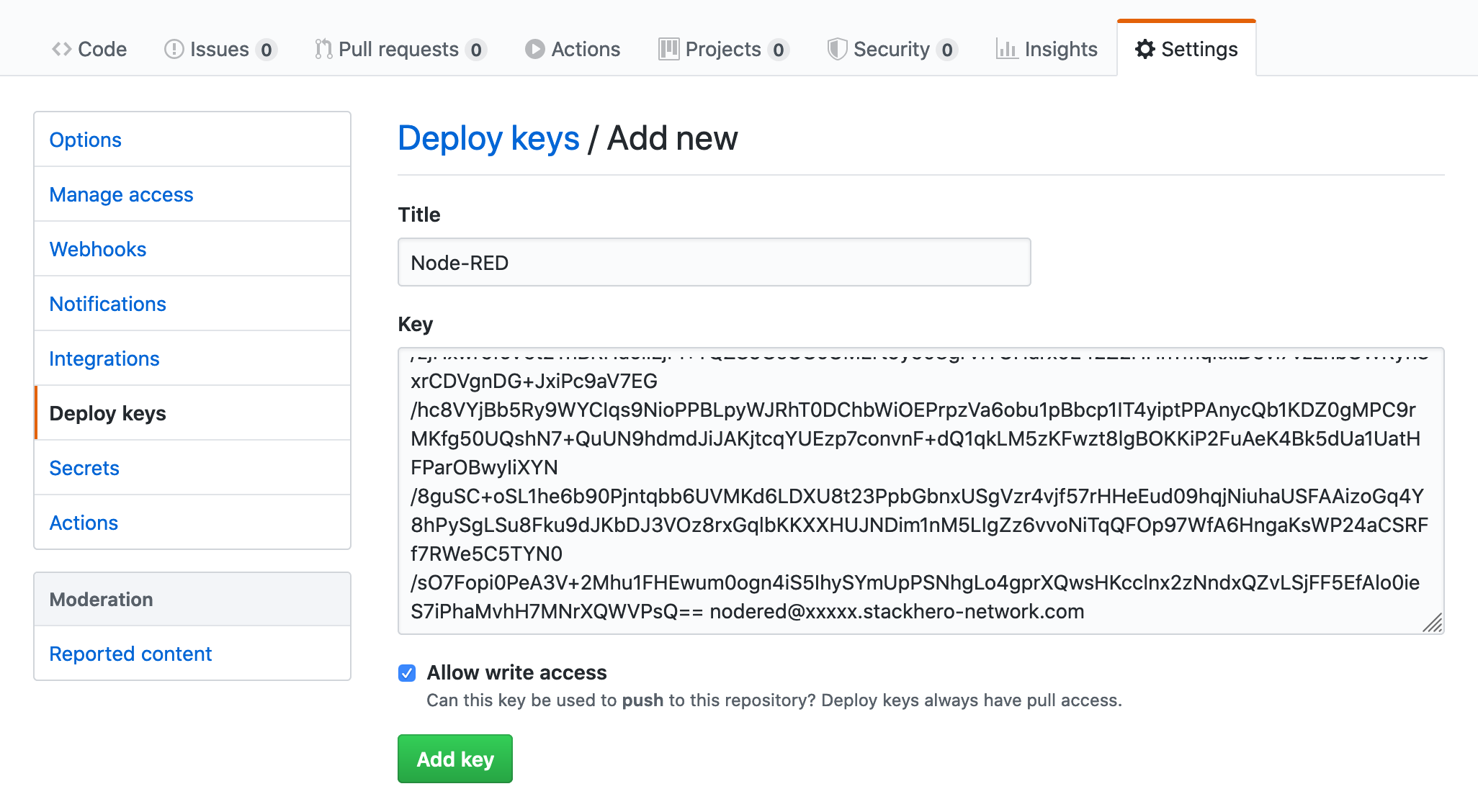 Add public key on GitHub
Go back to your repository's Code tab and copy the SSH URL. This will usually look like [email protected]:<yourOrganization>/<yourRepositoryName>.git. If you are working with an existing repository, you will find this URL by clicking the Clone or download button.
Adding the remote repository to Node-RED
Return to Node-RED, open the menu (top-right hamburger icon), select Projects, and then click "New".
Choose Clone Repository and verify your username and email settings. Paste the SSH URL of your repository into the Git repository URL field (for example, [email protected]:<yourOrganization>/<yourRepositoryName>.git) and click Clone Project.
If you are using a new repository, Node-RED may prompt you to create default project files. If so, select Create default project file.
Node-RED offers you the option to encrypt your flow credentials files before adding them to Git. Enabling encryption is strongly recommended to protect sensitive information. Be sure to keep the encryption key in a secure place. You will need it if you ever want to decrypt your credentials later.
When everything is ready, click Create project files to complete your project setup.
Additional resources
For more detailed information, the official Node-RED documentation on Projects is a helpful resource: Node-RED Projects Documentation.
You may also find this video tutorial useful: Introduction to Node-RED Projects (YouTube).