 MongoDB: Robo 3T configuration
Learn how to configure Robo 3T for your MongoDB instance.
If you want to connect Robo 3T (formerly known as Robomongo) to your MongoDB instance, you are in the right place. This step-by-step guide will walk you through the configuration process so you can easily set up and manage your connections.
To learn more about Robo 3T, feel free to visit the official website.
Please note that Robo 3T is no longer maintained. You may want to consider more up-to-date tools such as Studio 3T or MongoDB Compass as alternatives.
Configuring Robo 3T
Step 1: Start the configuration
Start by opening Robo 3T and navigating to the "MongoDB Connections" section. If you want to create a new connection, click on "Create" to begin.
A window titled "Connection Settings" will appear. Here’s how to fill in the information for each tab.
Connection tab
In the "Connection" tab, complete the following fields:
- Name: Choose a unique and descriptive name for your connection. This will help you identify it later.
- Address: Enter the domain name of your MongoDB instance (for example,
<XXXXXX>.stackhero-network.com) or use your custom domain if you have one.
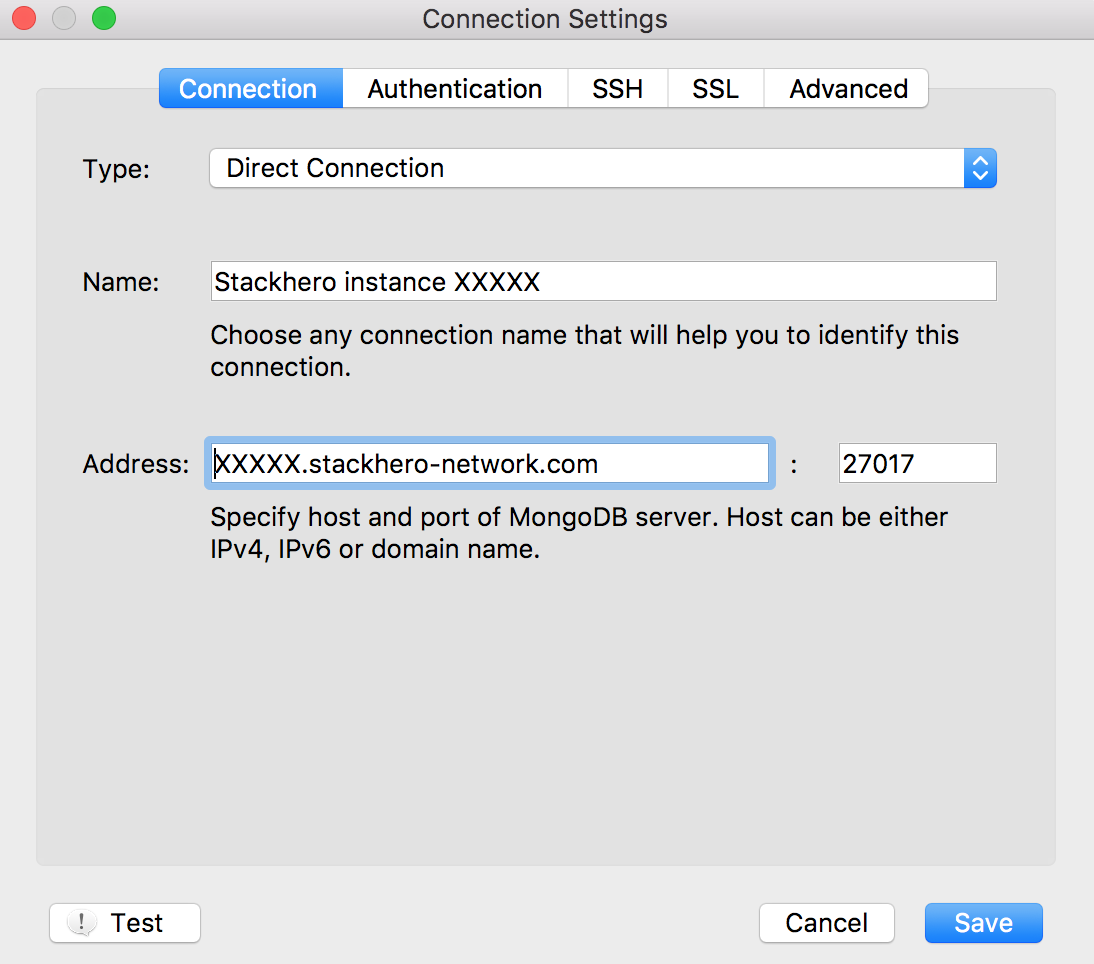 Connection Tab Configuration
Authentication tab
Next, go to the "Authentication" tab and fill in the following fields:
- Perform Authentication: Make sure this option is enabled.
- Default Database: Enter
admin. - Username: Enter
admin. - Password: Use the password provided in your Stackhero dashboard.
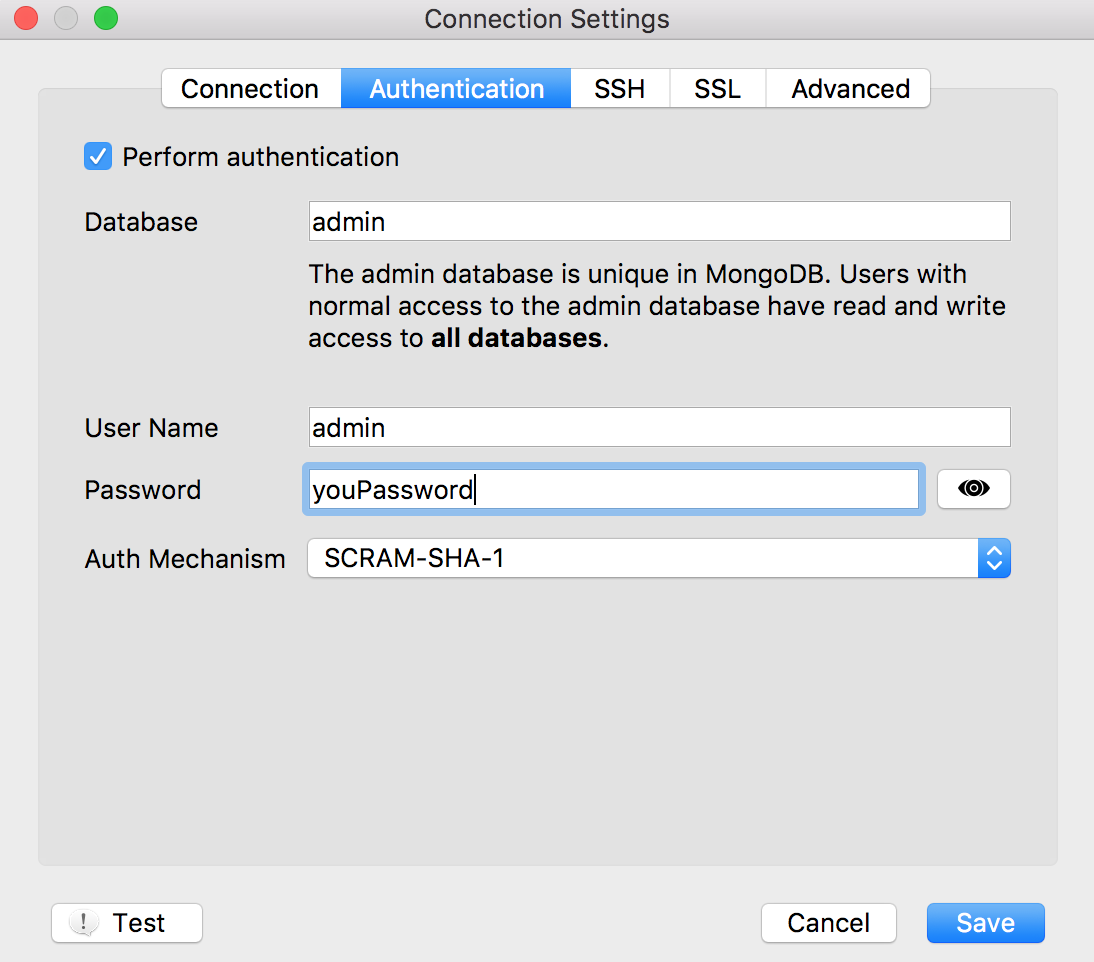 Authentication Tab Configuration
SSL tab
Finally, open the "SSL" tab and adjust the following settings:
- Use SSL Protocol: Check this box to enable SSL.
- SSL Type: Select "Self-signed certificate" since the Certificate Authority (CA) for this connection is not publicly recognized.
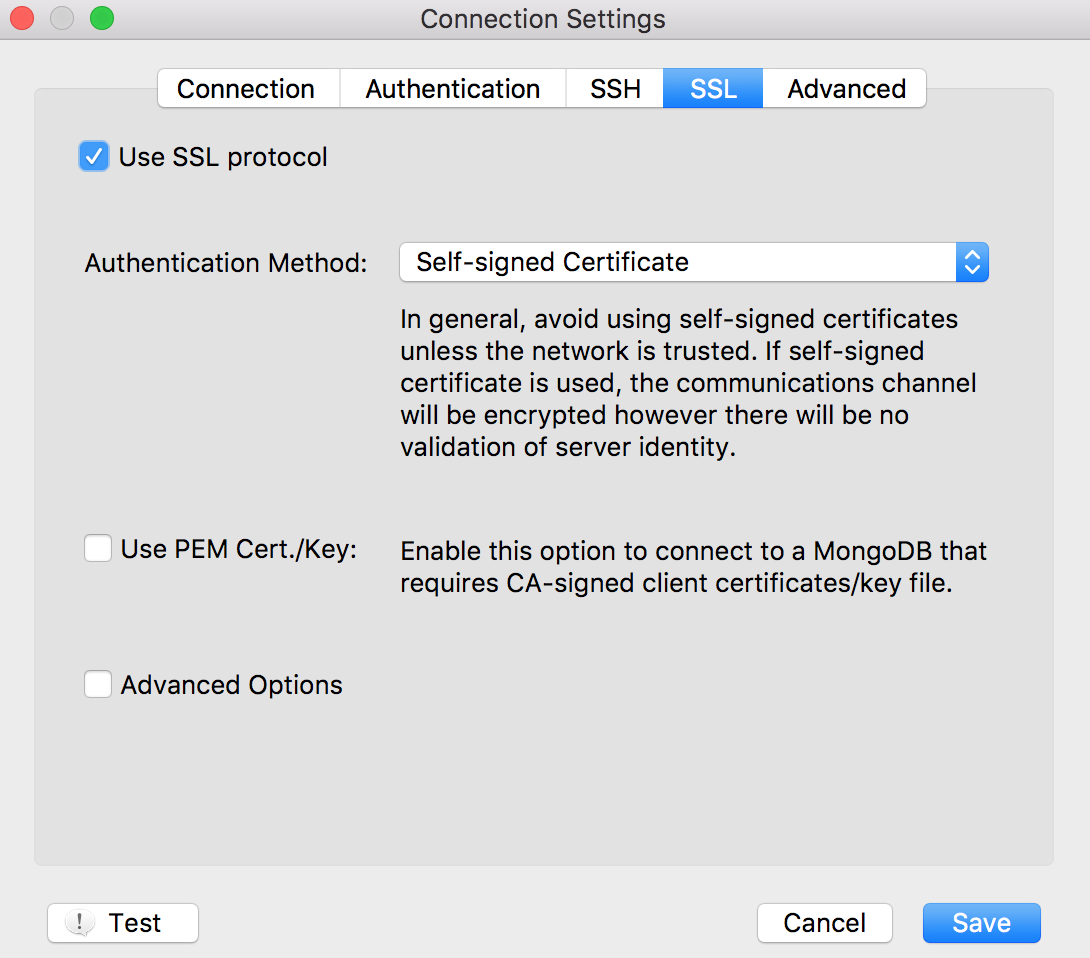 SSL Tab Configuration
Once you have completed these steps, you will be able to connect to your MongoDB instance through Robo 3T with ease.
Troubleshooting common issues
Error: "Network error while attempting to run command 'saslStart' on host XXXXX"
If you encounter this error, it is usually due to a compatibility issue between your MongoDB server version and the version of Robo 3T you have installed. To resolve this, you can:
- Download and install the latest version of Robo 3T from the official website.
We hope this guide helps make your setup process easier. If you have any questions or need assistance, please contact our support team. We are here to help you!