 MongoDB: Replica set (HA)
How to configure a high availability replica set
A replica set is a group of MongoDB nodes that work together to provide high availability and better performance by duplicating data across multiple servers. With a replica set, your database remains accessible even if one of the nodes fails, and you can handle more requests by distributing the load.
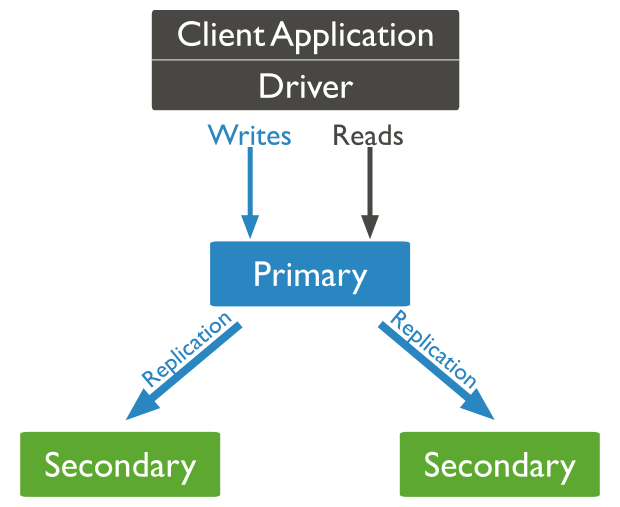 Example of a replica set with 3 nodes
In a high availability setup, if one node becomes unavailable, your data remains accessible through the other nodes. Performance is also improved because all write operations are directed to the primary node, while read operations can be distributed across the secondary nodes.
If you are new to replica sets, you may want to consult MongoDB's official documentation for more information.
How replica sets work
To set up a replica set, you will need at least three MongoDB nodes:
- One node acts as the primary and handles all write operations as well as, by default, read operations.
- The other nodes are secondaries. They continuously replicate data from the primary node almost in real time.
If a secondary node becomes unavailable, your application continues to function normally. When it rejoins the cluster, it synchronizes any missed data and brings itself up to date with the rest of the replica set.
If the primary node fails, the replica set automatically triggers an election to designate a new primary. This process generally takes about 10 seconds. During this period, the replica set is read-only. As soon as a new primary is elected, all operations resume as normal.
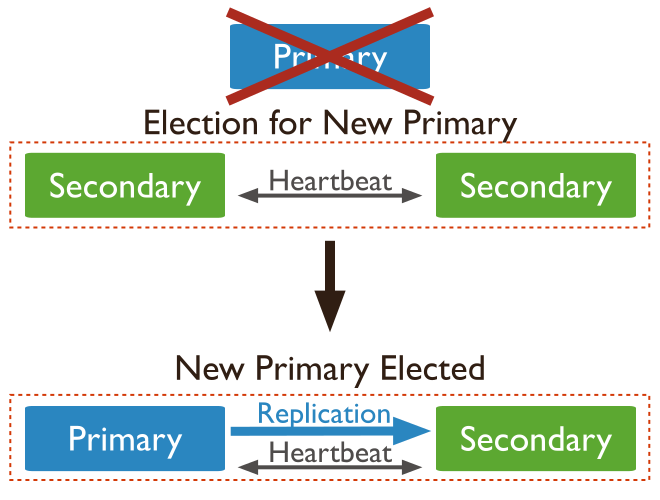 Example of an election
Getting started with a MongoDB replica set
To create a replica set on Stackhero, you will need at least three MongoDB instances. Here are the steps to follow:
- Start your three (or more) MongoDB instances from the Stackhero dashboard.
- Once your instances are running, update their configuration in the dashboard:
- Set the same admin password on each instance.
- Enable the Activate replica set option.
- Choose a replica name and a secret key that all nodes will share. (Note: The replica name cannot be changed after creation. If you are unsure,
rs-1is a good default value.)
Make sure that ALL your instances have identical configuration (admin password, replica set name, and replica secret key).
Once the configuration is saved, you will need to define all members of your replica set within MongoDB. Here is how to proceed:
- Use this command to connect with the Mongo CLI:
mongo --quiet mongodb://admin@<XXXXXX>.stackhero-network.com/?tls=true
If you do not have the Mongo CLI installed, you can use the official Docker image with this command:
> docker run -it mongo /bin/bash
This command opens a shell where you can run Mongo commands directly.
- Once connected, you can initialize your replica set with the following command. Be sure to replace the
_idwith your replica set name and update the member hostnames as needed:
rs.initiate({
   _id: "rs-1",
   members: [
      { _id: 0, host: "<XXXXXX>.stackhero-network.com:27017" },
      { _id: 1, host: "<XXXXXX>.stackhero-network.com:27017" },
      { _id: 2, host: "<XXXXXX>.stackhero-network.com:27017" }
   ]
})
If the command is successful, you will see a response like { "ok" : 1 }.
- To review your replica set configuration, you can run:
rs.conf()
You only need to apply this configuration on one node. The other nodes are updated automatically.
Your MongoDB replica set is now operational.
Check your MongoDB replica set status
To help you monitor the status of your replica set, we have created a Node.js script that checks the status every second. You can find this script on our GitHub repository.
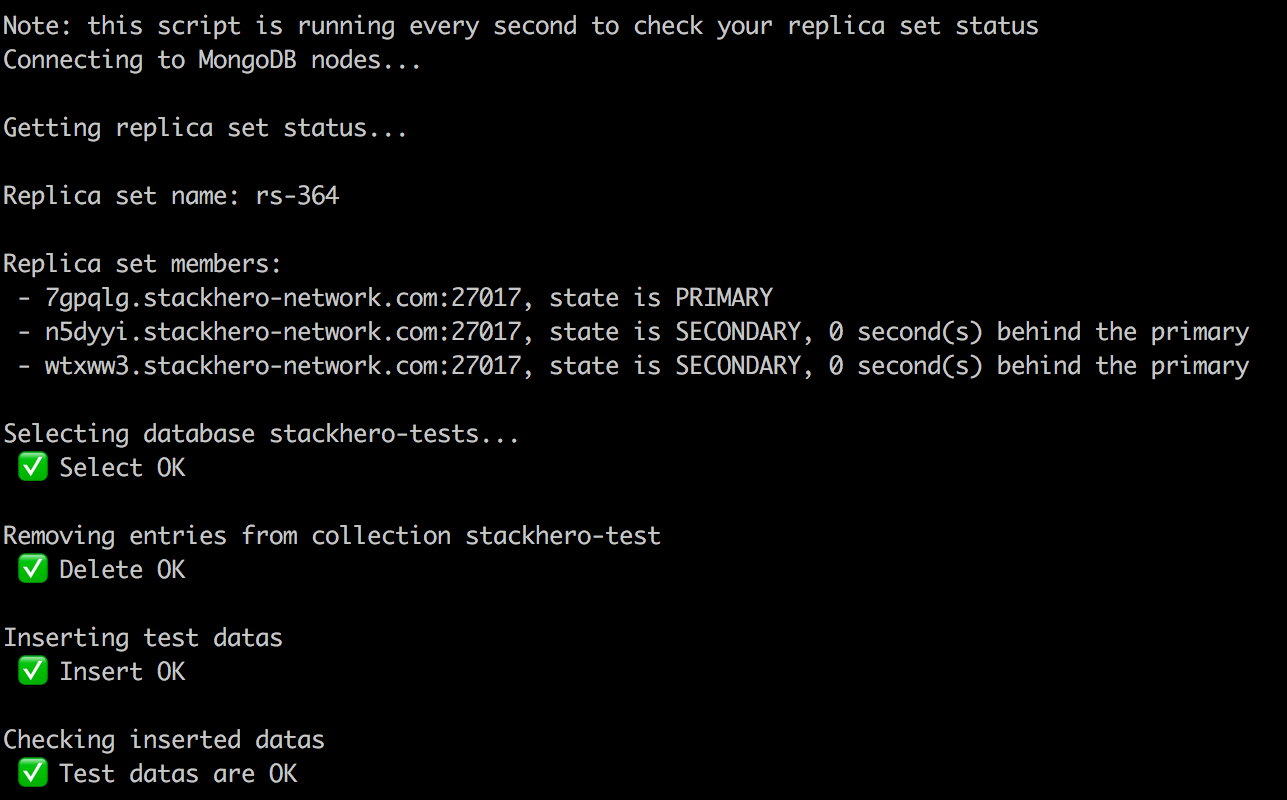 Screenshot of the script
Troubleshooting
Handling the error: "network error while attempting to run command 'isMaster' on host"
If you encounter this error, it is usually because TLS encryption has not been enabled. You can resolve this by adding the tls=true parameter to your connection URL. For example:
mongodb://admin:PASSWORD@<XXXXXX>.stackhero-network.com:27017/admin?tls=true